
Tab reference
What each tab does, its controls, and an example of the interface.
Screenshots use a demonstration website and fictional accounts.
Dashboard
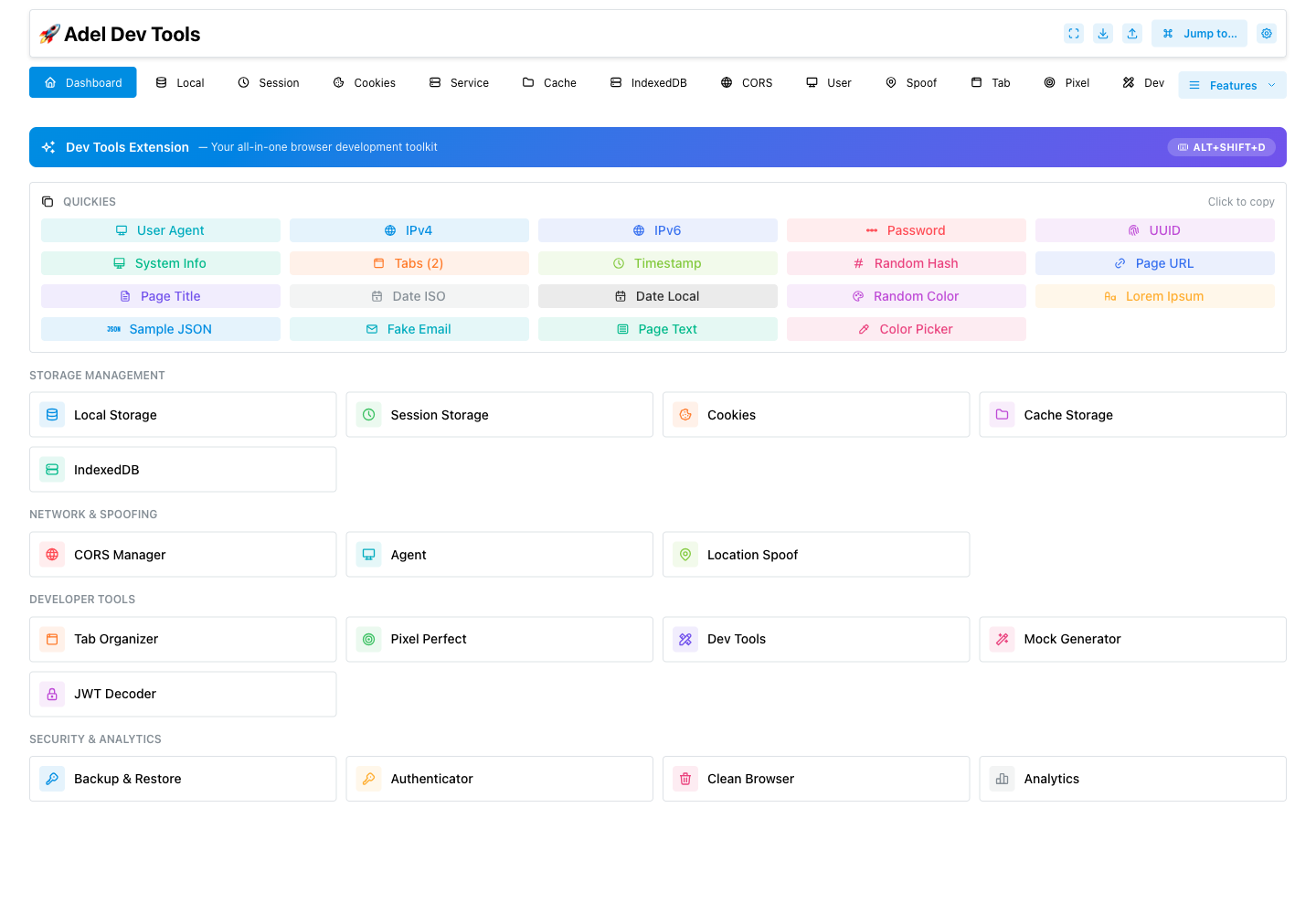
#Shows shortcuts to every extension section, the open-tab count, IP and browser details, and buttons that copy or generate common values.
- Feature shortcuts
- Open-tab count
- IPv4 and IPv6 lookup
- User-agent and system information
- Password and UUID generation
How to use Dashboard
- Open Adel Dev Tools.
- Choose a feature card or quick action.
- Copy the result or continue into the selected section.
IP lookup depends on external ipify endpoints, and browser details reflect the extension page’s environment.
Authenticator
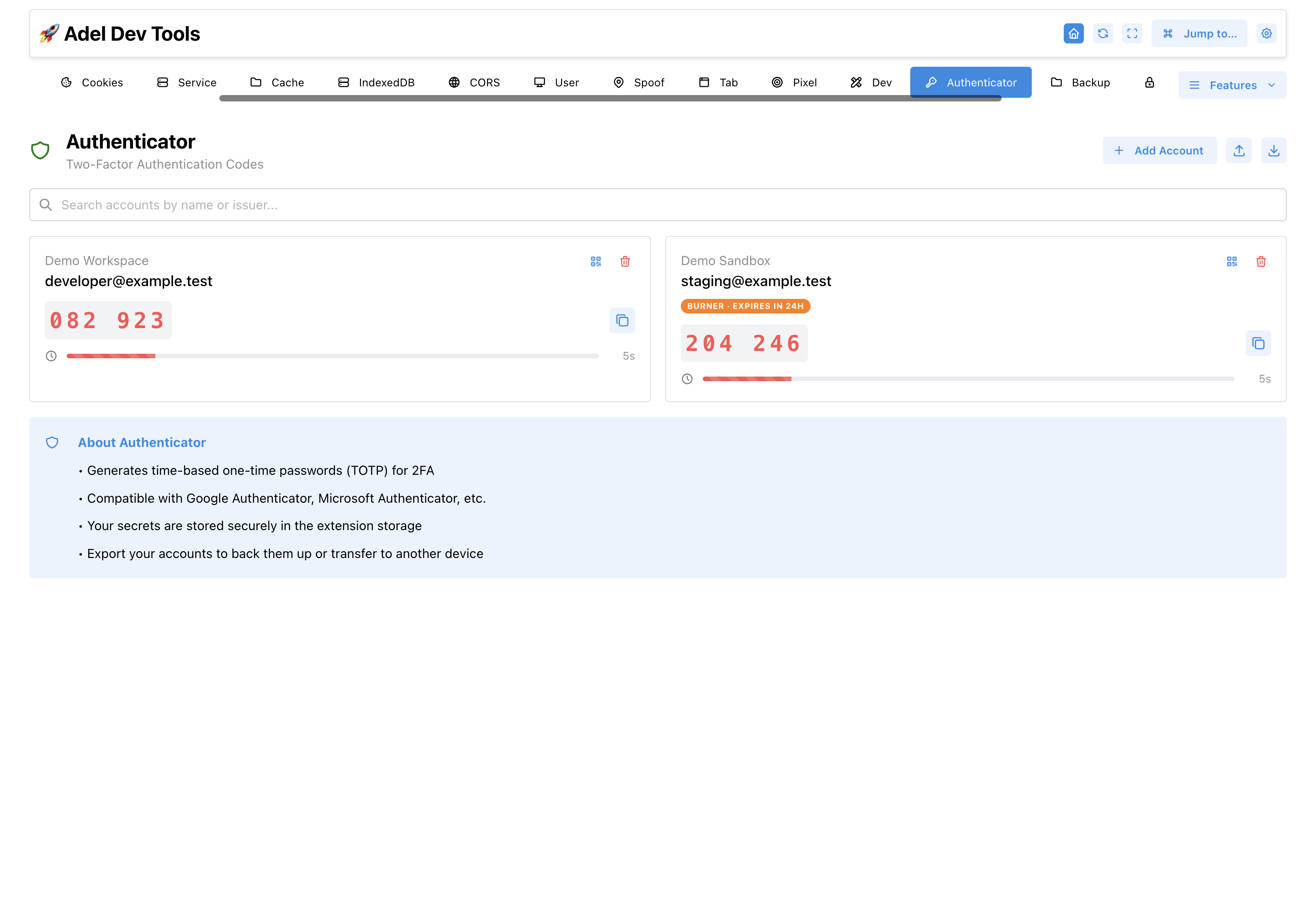
#Stores authenticator accounts and displays their current time-based one-time passwords with a countdown. The same encrypted vault can be opened in the mobile web app and the Chrome extension.
- TOTP with SHA-1, SHA-256, or SHA-512
- 6-digit and configurable-period accounts
- QR image, camera, and multi-account Google Authenticator export scanning
- Encrypted Google Drive sync with the mobile web app
- Import and export in the extension
- Search and live countdown
How to use Authenticator
- Open the Authenticator web app or the extension tab and connect the encrypted Google Drive vault.
- Add an account manually, paste an otpauth URI, scan with the camera, choose a QR image, or scan every QR in a Google Authenticator export. Scanned accounts are added immediately; accounts already in the list are reported and left unchanged.
- Search for the account and copy its current code.
- Connect the same Google account in the extension to keep one encrypted list synchronized.
Authenticator secrets are sensitive; exported or displayed secret data should be handled like credentials.
Burner Authenticator Accounts
#In the extension: Authenticator → Burner Authenticator Accounts
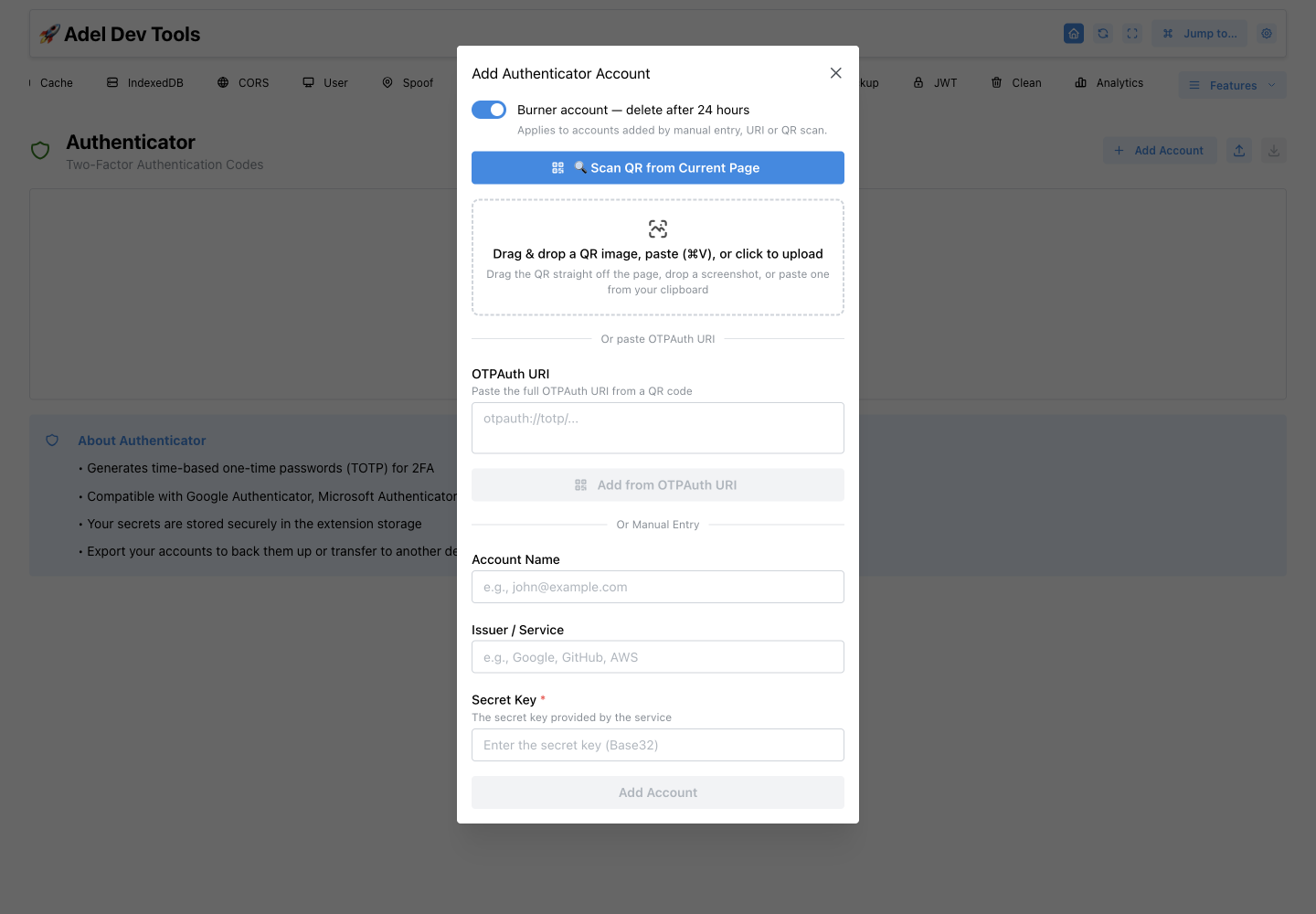
Marks a newly added authenticator account for deletion after 24 hours. Expired burner accounts are left out of backups and restores.
- 24-hour expiry
- Visible expiry status
- Automatic exclusion of expired burners from backup and restore
How to use Burner Authenticator Accounts
- Turn on Burner account while adding an account.
- Add it manually, by URI, or by QR scan.
- Use the code normally until the account expires.
The burner setting applies when the account is added and does not make the external service account temporary.
Local Storage
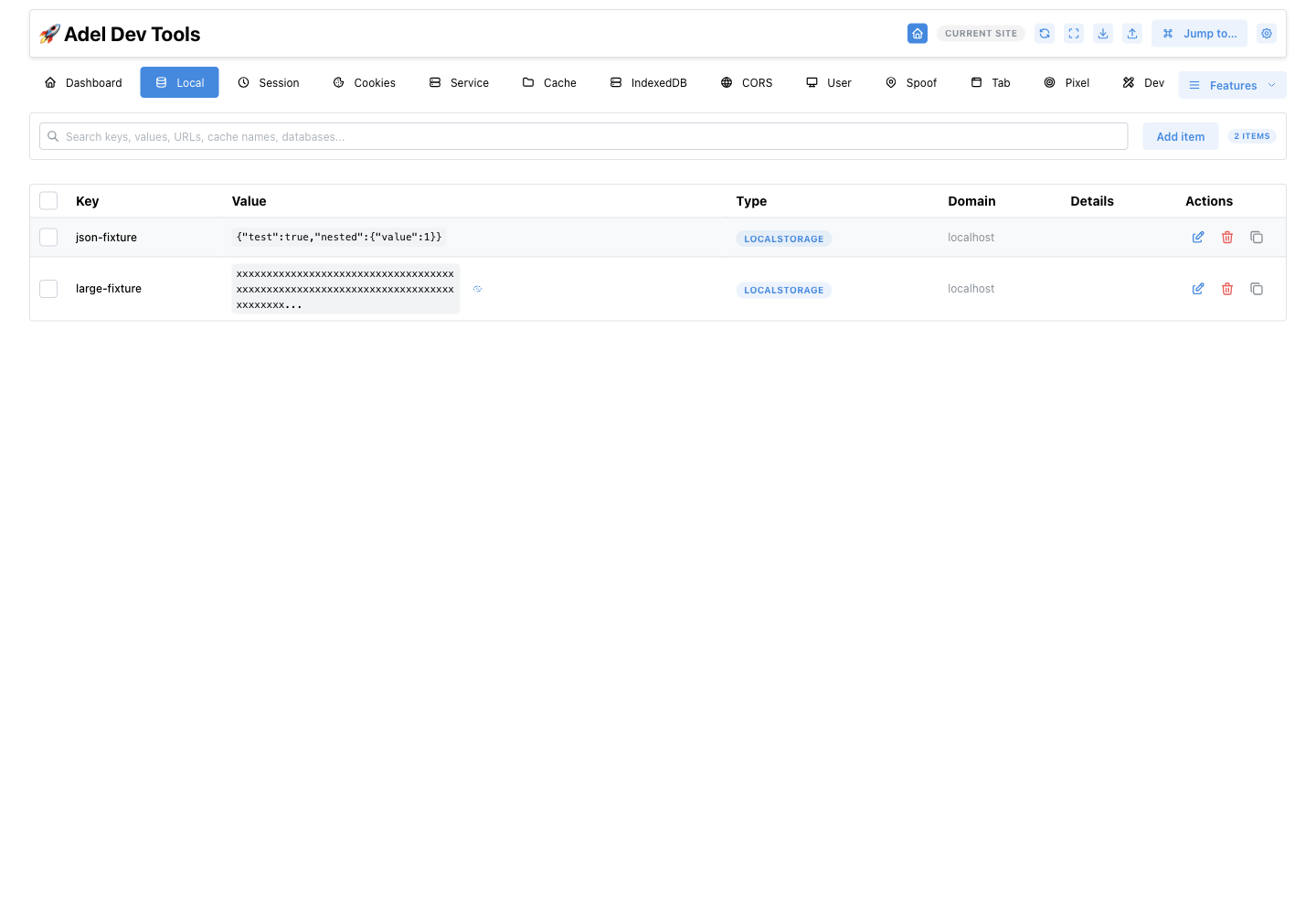
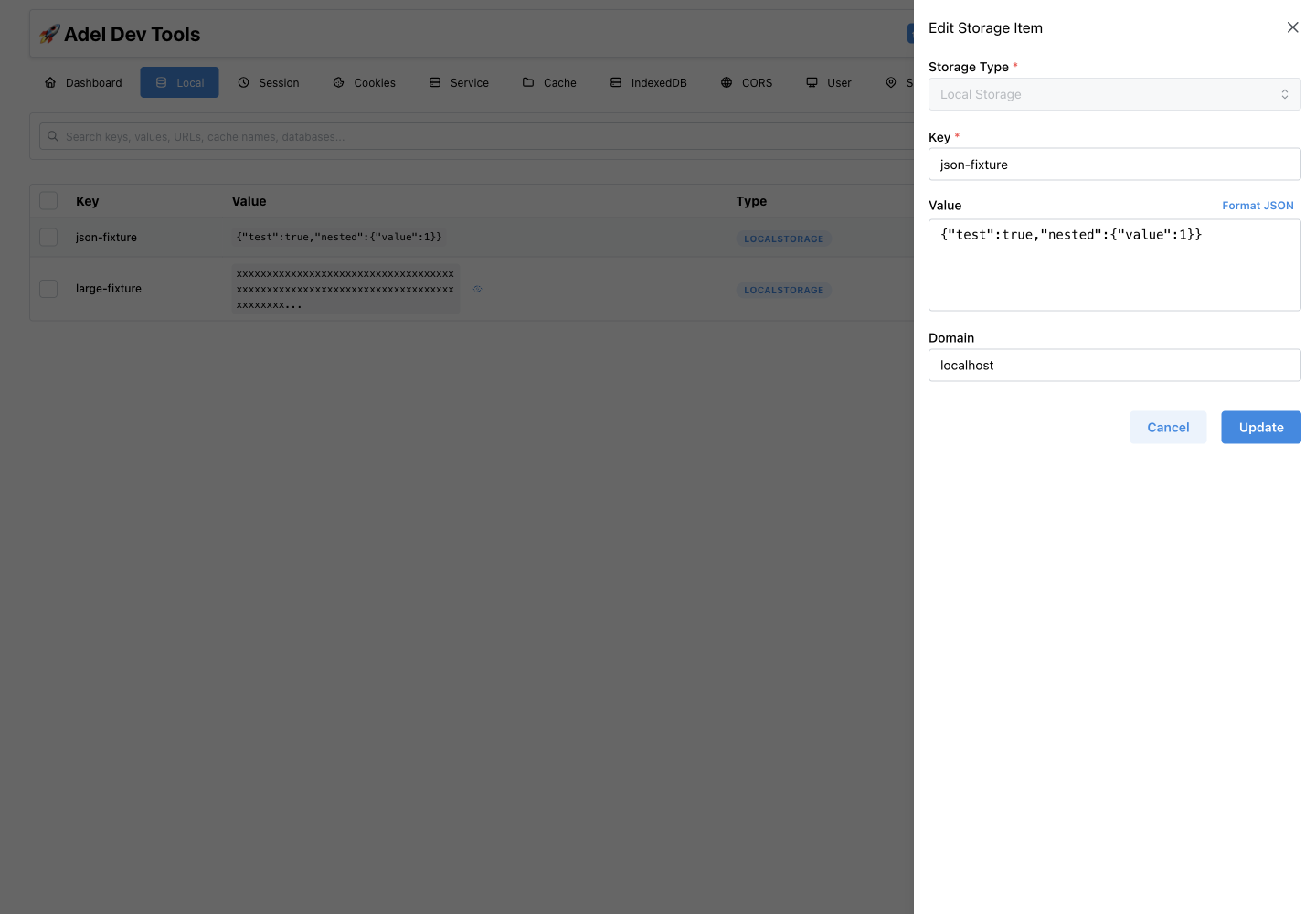
#Lists localStorage keys and values for the selected site. You can search, add, edit, delete, import, export, format JSON, and recognize JWT values.
- Key and value search
- Formatted JSON editing
- Create and delete values
- Import and export
- JWT recognition
How to use Local Storage
- Open the website you want to inspect.
- Choose Local Storage and search for a key or value.
- Open an item to edit it, or select items to export or remove.
Website storage is origin-specific; restricted Chrome pages cannot be inspected.
More screenshots (1)
Session Storage
#Lists sessionStorage keys and values for the selected tab. You can search, add, edit, delete, import, export, and format JSON values.
- Per-tab session data
- Search
- JSON formatting
- Create, edit, and delete
- Import and export
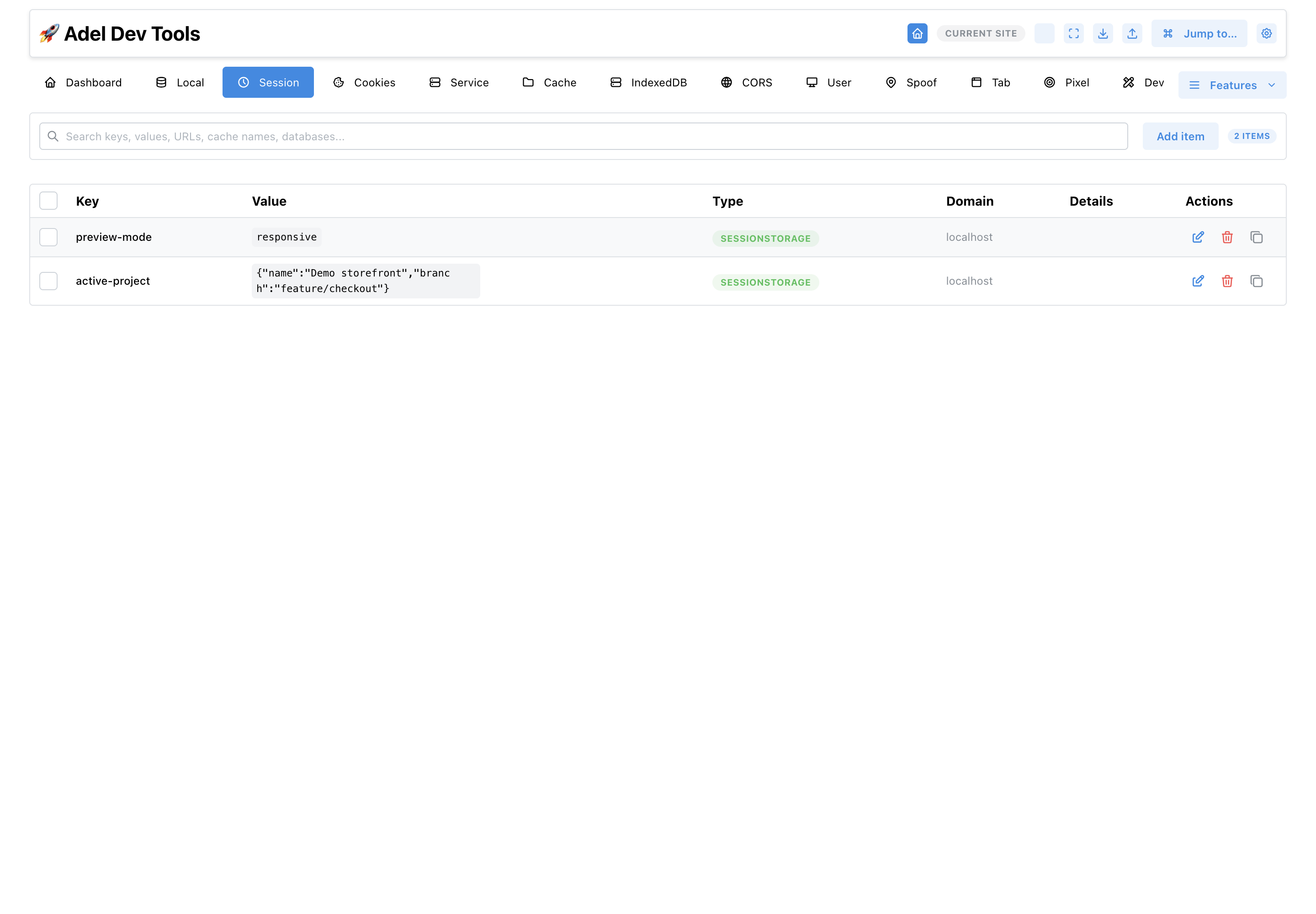
How to use Session Storage
- Select the target website tab.
- Choose Session Storage.
- Search, inspect, edit, create, or delete the needed entry.
Closing the website tab can clear its sessionStorage, and access is unavailable on restricted pages.
Cookies
#Lists cookie values with their domain, path, expiry, SameSite, Secure, HttpOnly, and partition details. Search and permitted edit or delete actions are available in the table.
- Cookie search
- Domain and path details
- Security and SameSite flags
- Expiry details
- Partition-aware metadata
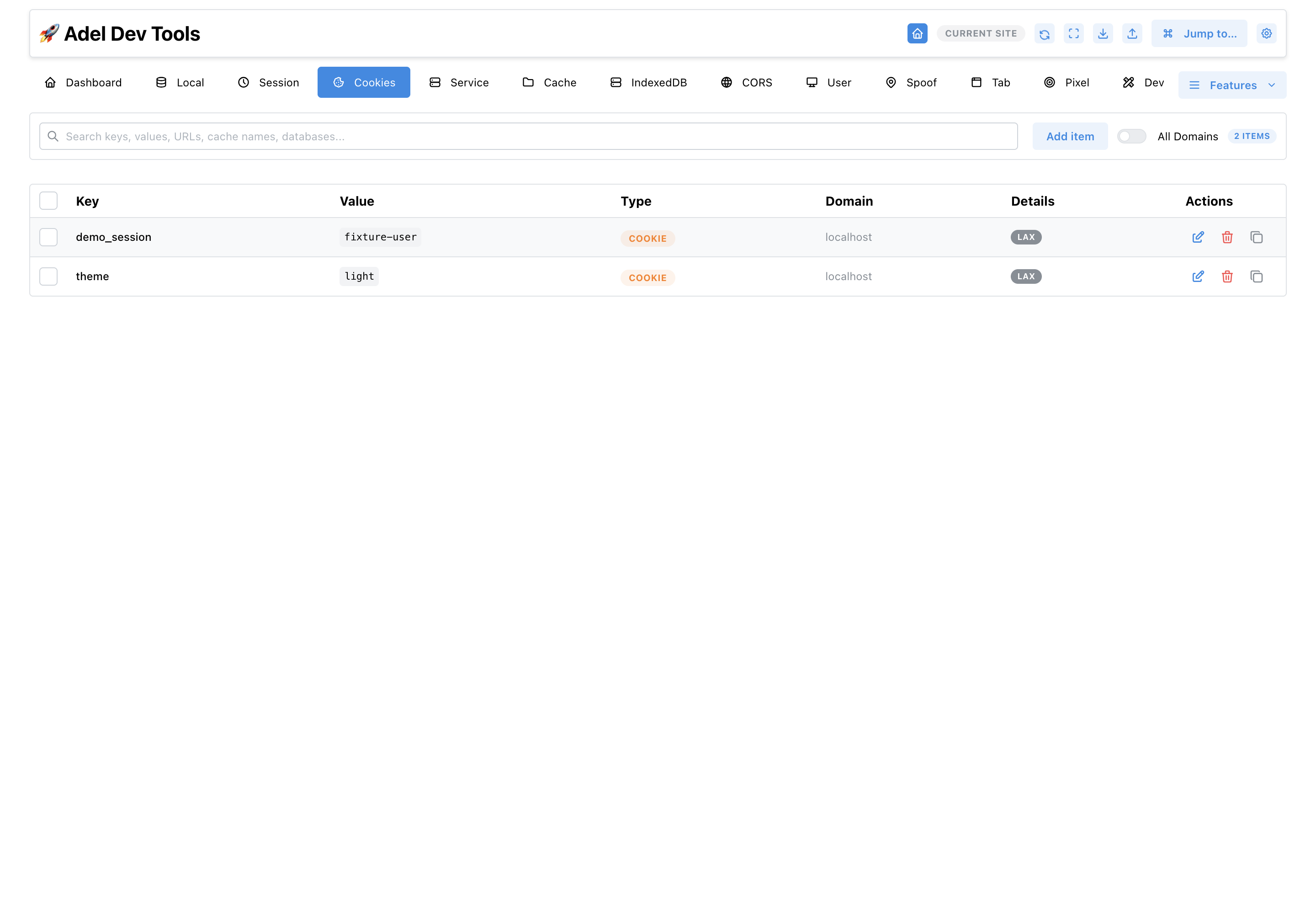
How to use Cookies
- Open the target website.
- Choose Cookies and locate the cookie.
- Review its scope and flags, then edit or remove it when the browser permits.
Browser rules can make some cookie values or attributes read-only.
Cache Storage
#Lists Cache Storage records by cache name, request URL and method, response status, and headers. Records can be searched and deleted.
- Cache-name grouping
- Request URL and method
- Response status and headers
- Search
- Delete entries
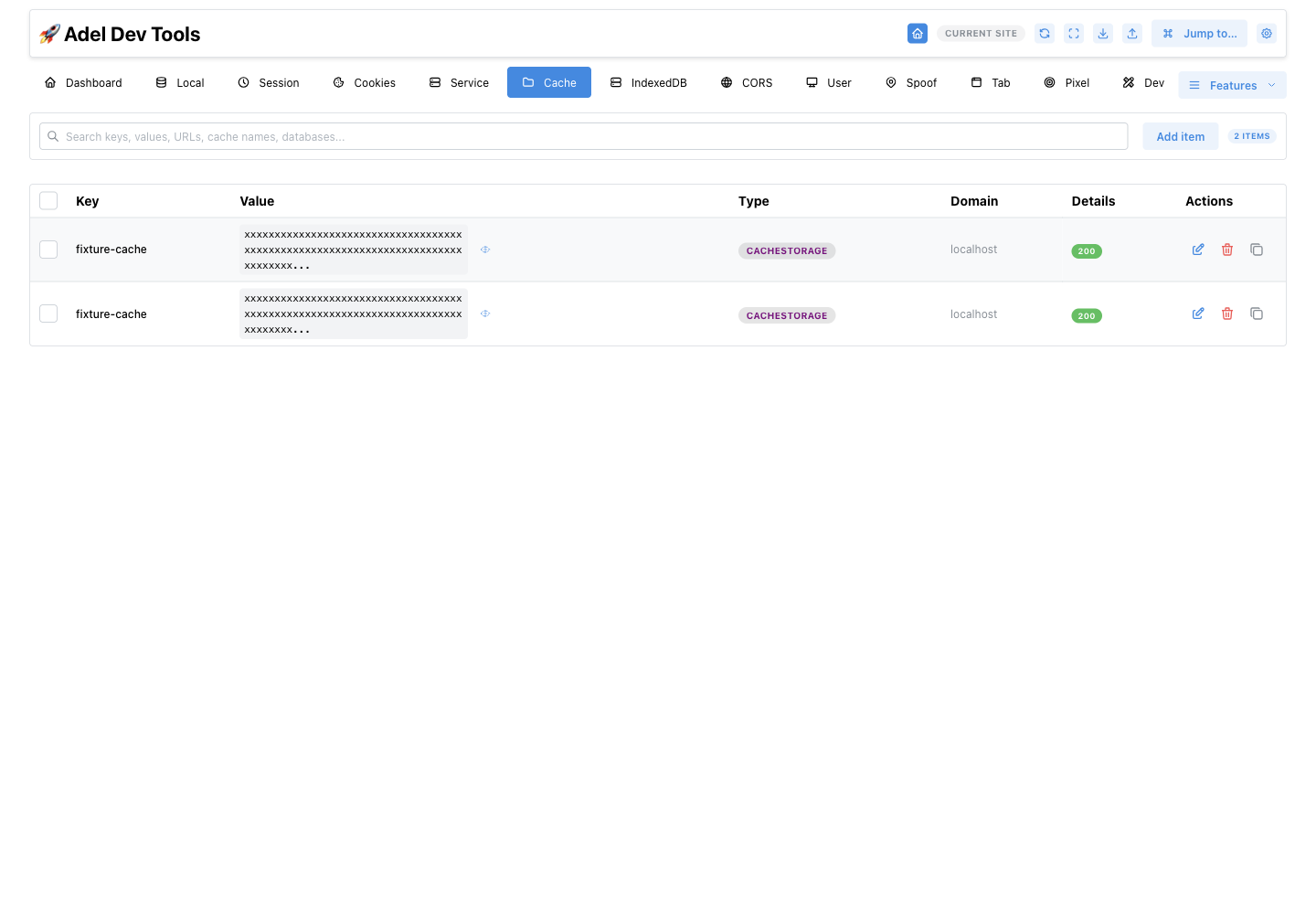
How to use Cache Storage
- Open the affected website.
- Choose Cache Storage.
- Inspect matching request and response records, then remove stale entries if needed.
Cache bodies are not presented as a general response-body editor.
IndexedDB
#Lists IndexedDB databases, object stores, record keys, key paths, indexes, and stored values for the selected origin. Search and record inspection are available from the table.
- Database and object-store context
- Record keys
- Key paths and auto-increment details
- Index metadata
- Search and record inspection
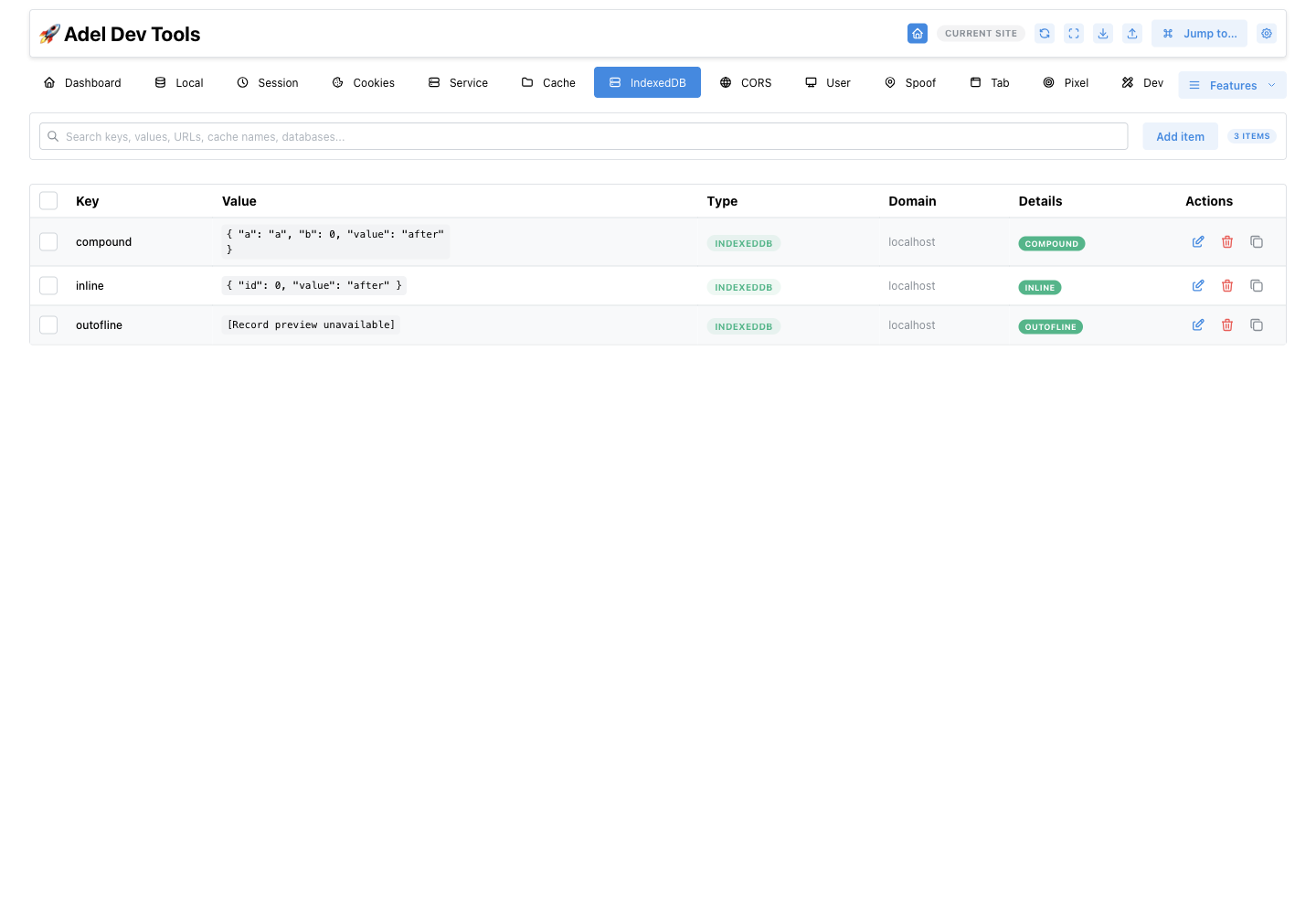
How to use IndexedDB
- Open the target website.
- Choose IndexedDB and locate a database and object store.
- Search or inspect a record and its key metadata.
Complex browser-managed values may be preview-only when they cannot be edited safely.
Service Workers
#Lists service workers for the selected site with scope, lifecycle, state, and update-via-cache details. Controls check for updates, activate waiting workers, show details, or unregister workers.
- Lifecycle and controller state
- Worker details
- Update checks
- Skip waiting
- Individual or bulk unregister
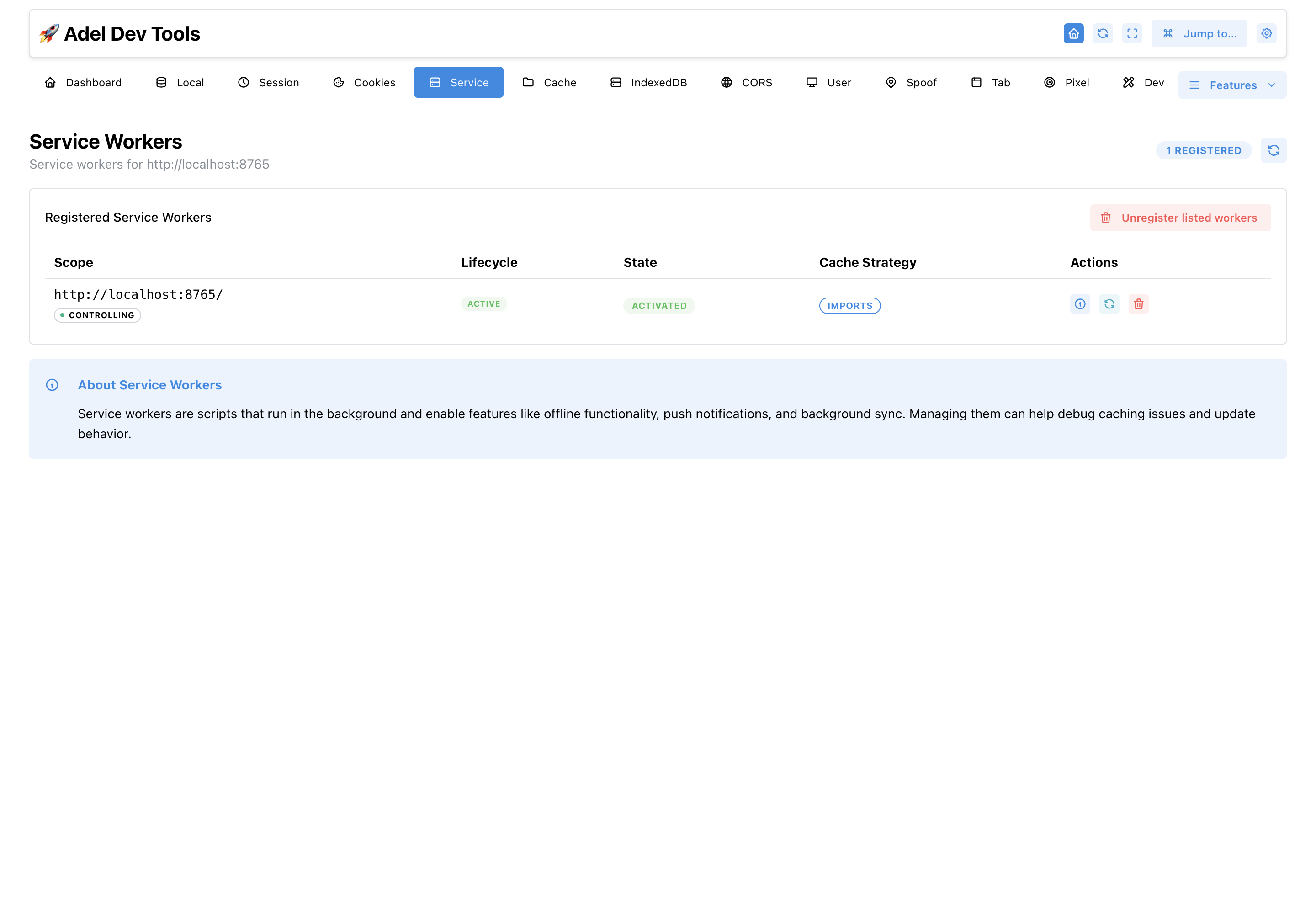
How to use Service Workers
- Open the website.
- Choose Service Workers and review registered workers.
- Check for an update, activate a waiting worker, inspect details, or unregister it.
Actions apply only to workers visible for the selected website origin.
CORS Manager
#Creates a temporary CORS response-header rule for one exact source origin and optional API domains. It includes fields for allowed headers, credentials, and a preflight test request.
- Source-origin scoping
- Optional API-domain allowlist
- Custom allowed headers
- Credentialed-request option
- Built-in preflight test
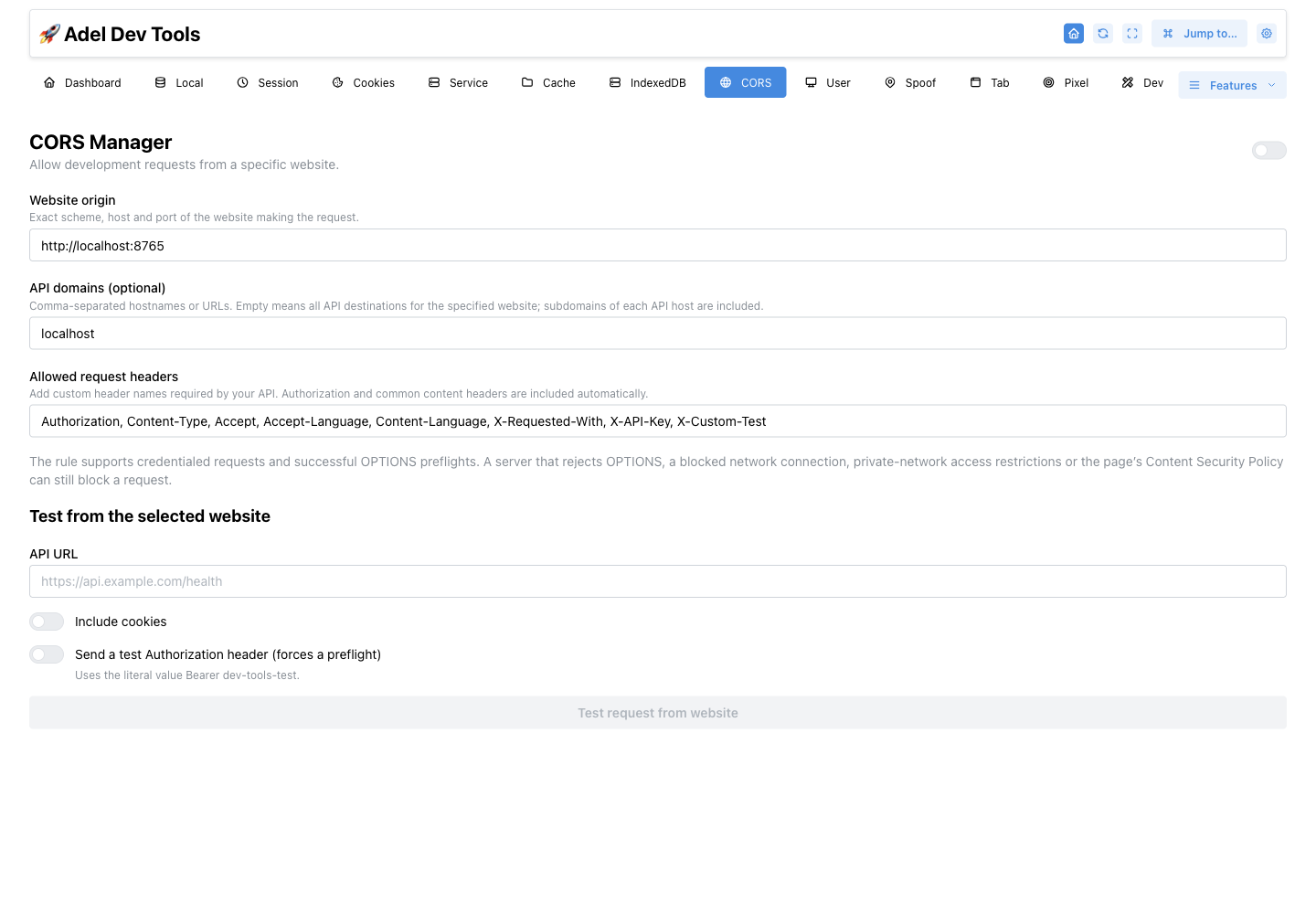
How to use CORS Manager
- Enter the exact source origin.
- Optionally restrict the API destinations and allowed headers.
- Enable the rule and use the built-in request test.
This is a development aid that changes browser-visible CORS headers; it does not change the API server or its authorization rules.
User Agent Switcher
#Applies a desktop, mobile, tablet, bot, or custom HTTP User-Agent value. Presets can be refreshed from browser release feeds and checked with the HTTP echo test.
- Desktop, mobile, tablet, and bot presets
- Custom values
- Official browser-release feed refresh
- HTTP echo verification
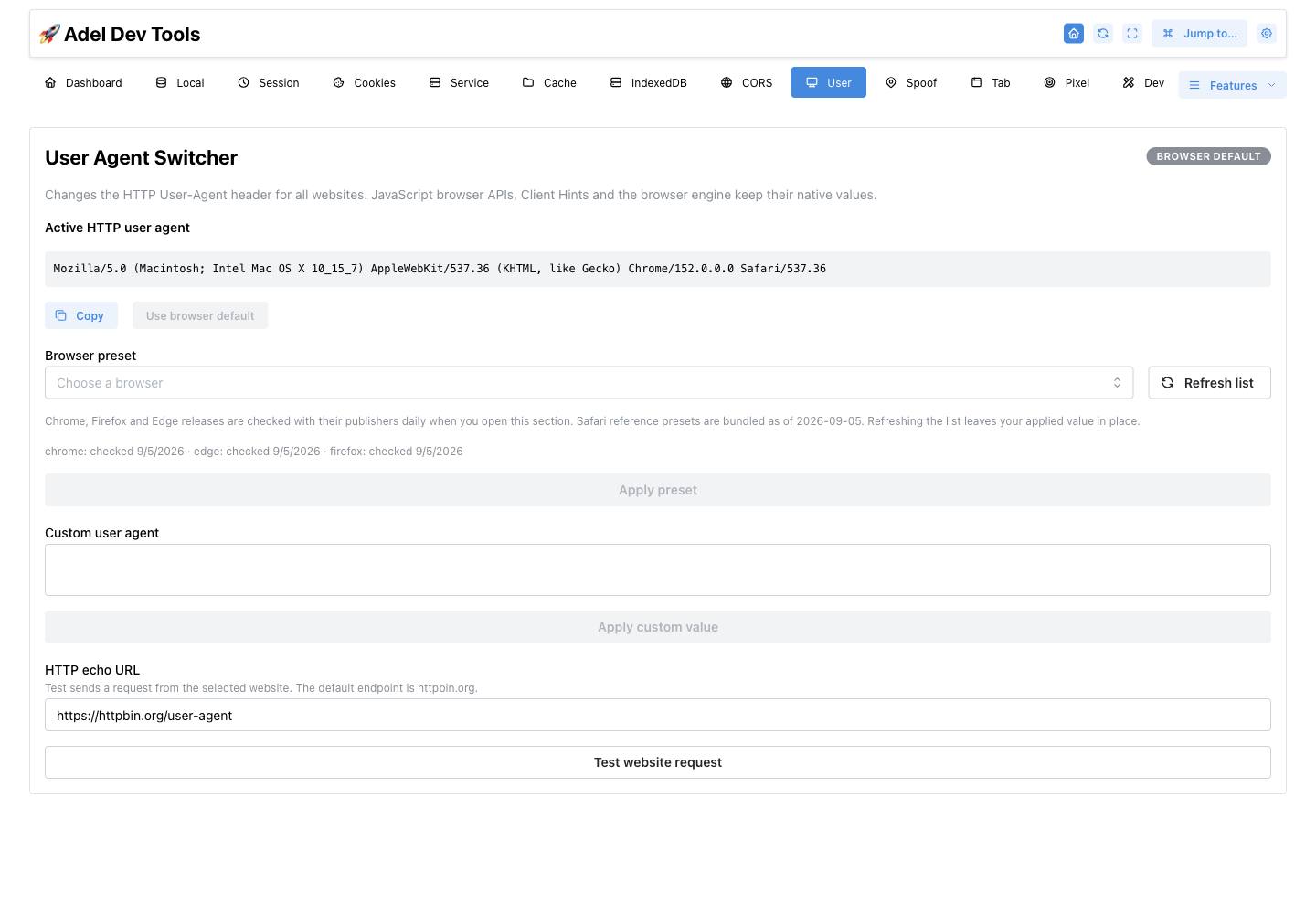
How to use User Agent Switcher
- Choose a maintained preset or enter a custom user agent.
- Enable the override.
- Reload the test page and optionally verify it with the HTTP echo test.
Changing the HTTP user-agent does not emulate every browser engine, device capability, or client hint.
Spoof Location
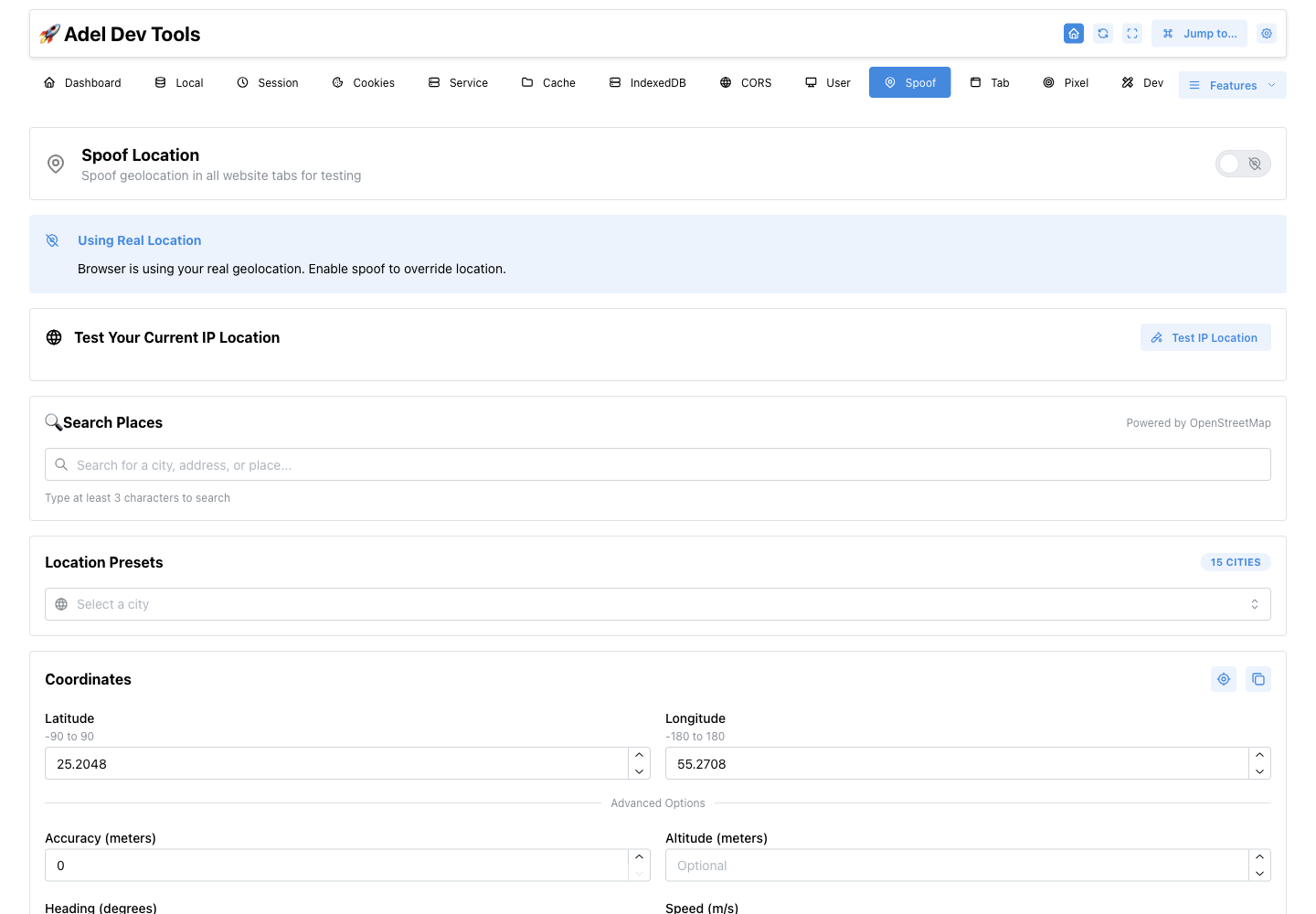
#Overrides browser geolocation with a searched place, preset, or exact coordinates. Accuracy, altitude, heading, and speed can also be set and tested.
- Place search
- Location presets
- Latitude and longitude
- Accuracy, altitude, heading, and speed
- Geolocation test
How to use Spoof Location
- Search for a place, choose a preset, or enter coordinates.
- Adjust accuracy, altitude, heading, or speed if needed.
- Enable spoofing and run the browser geolocation test.
The override affects browser geolocation calls; it does not change your network IP location.
Tab Organizer
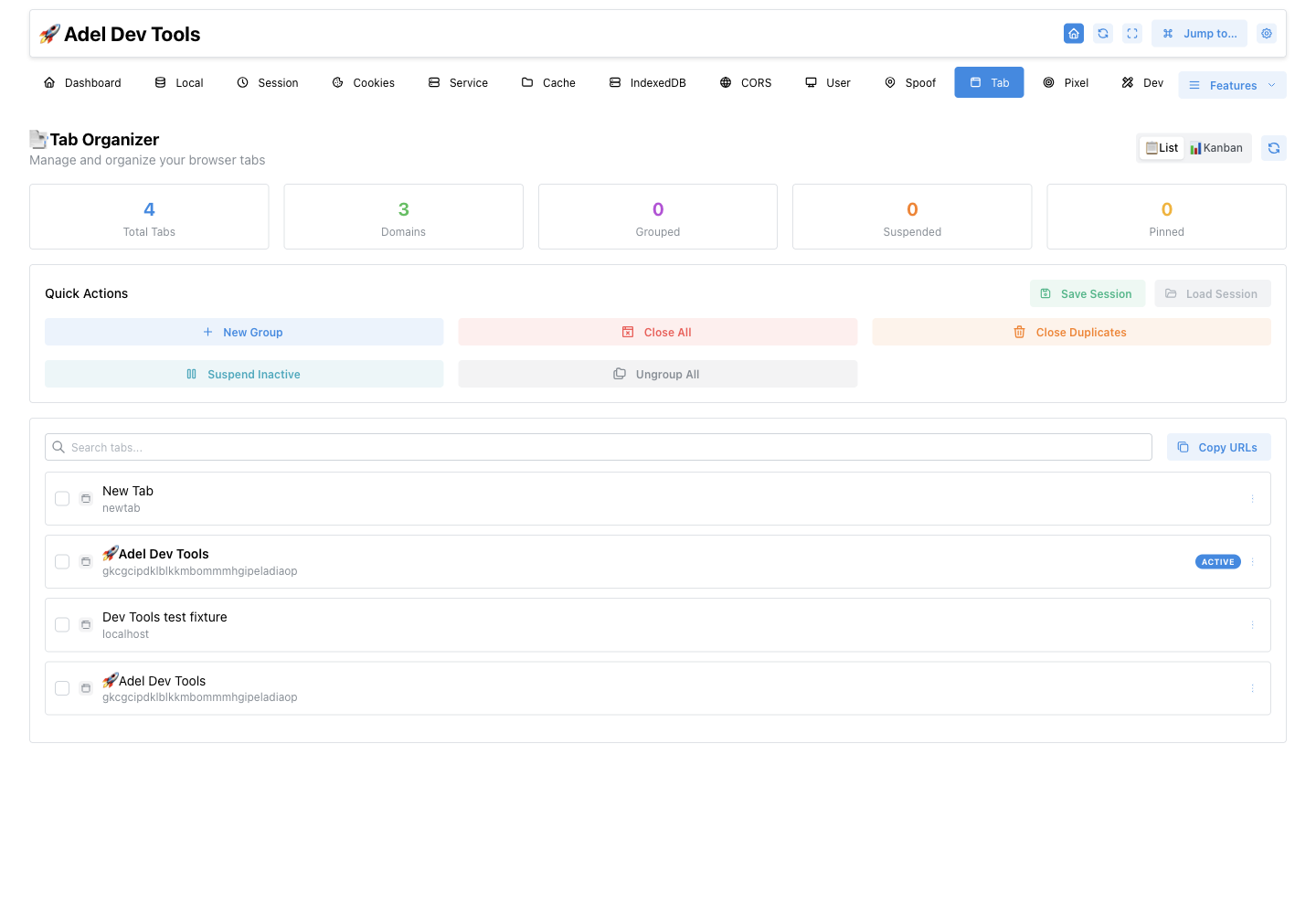
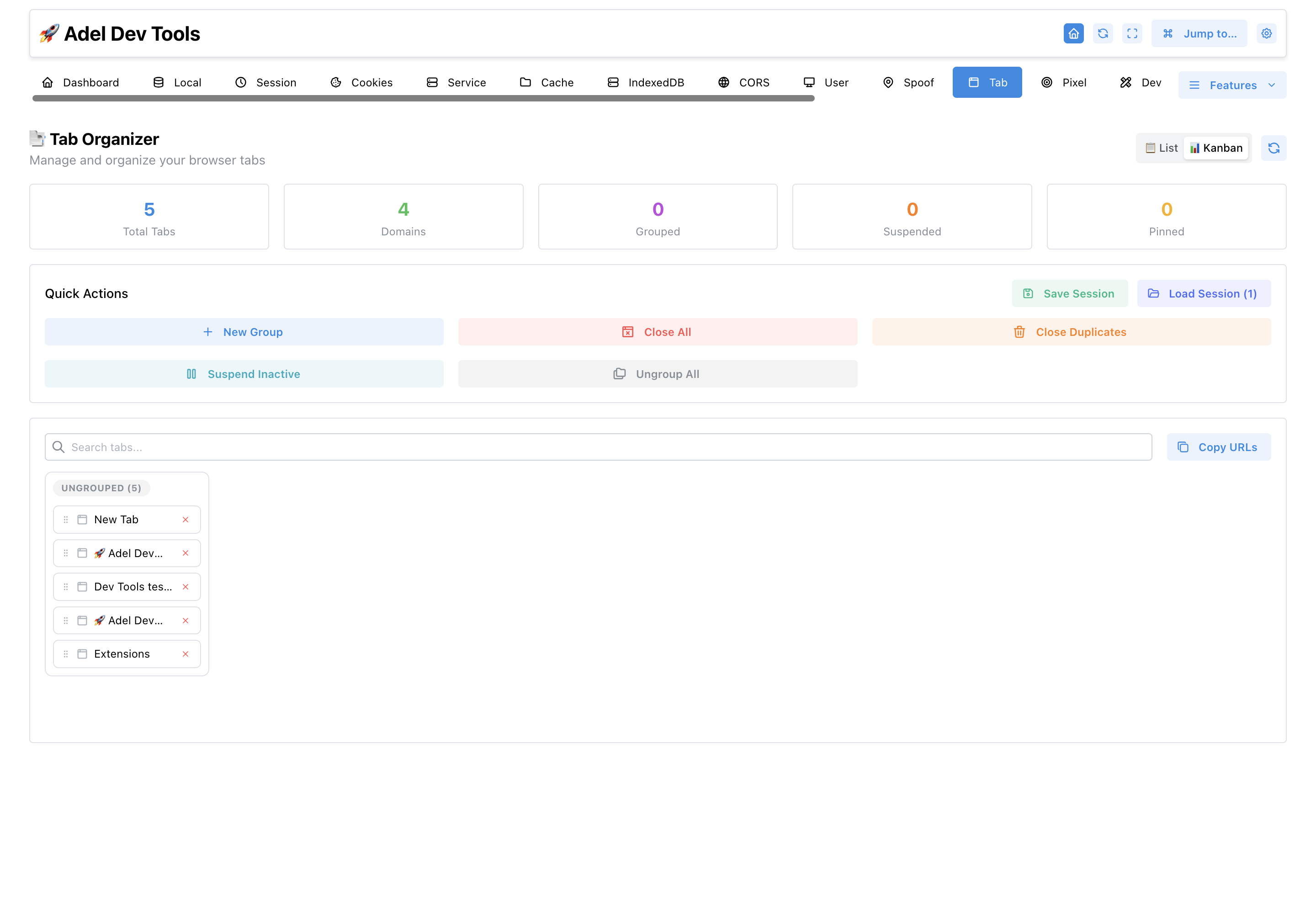
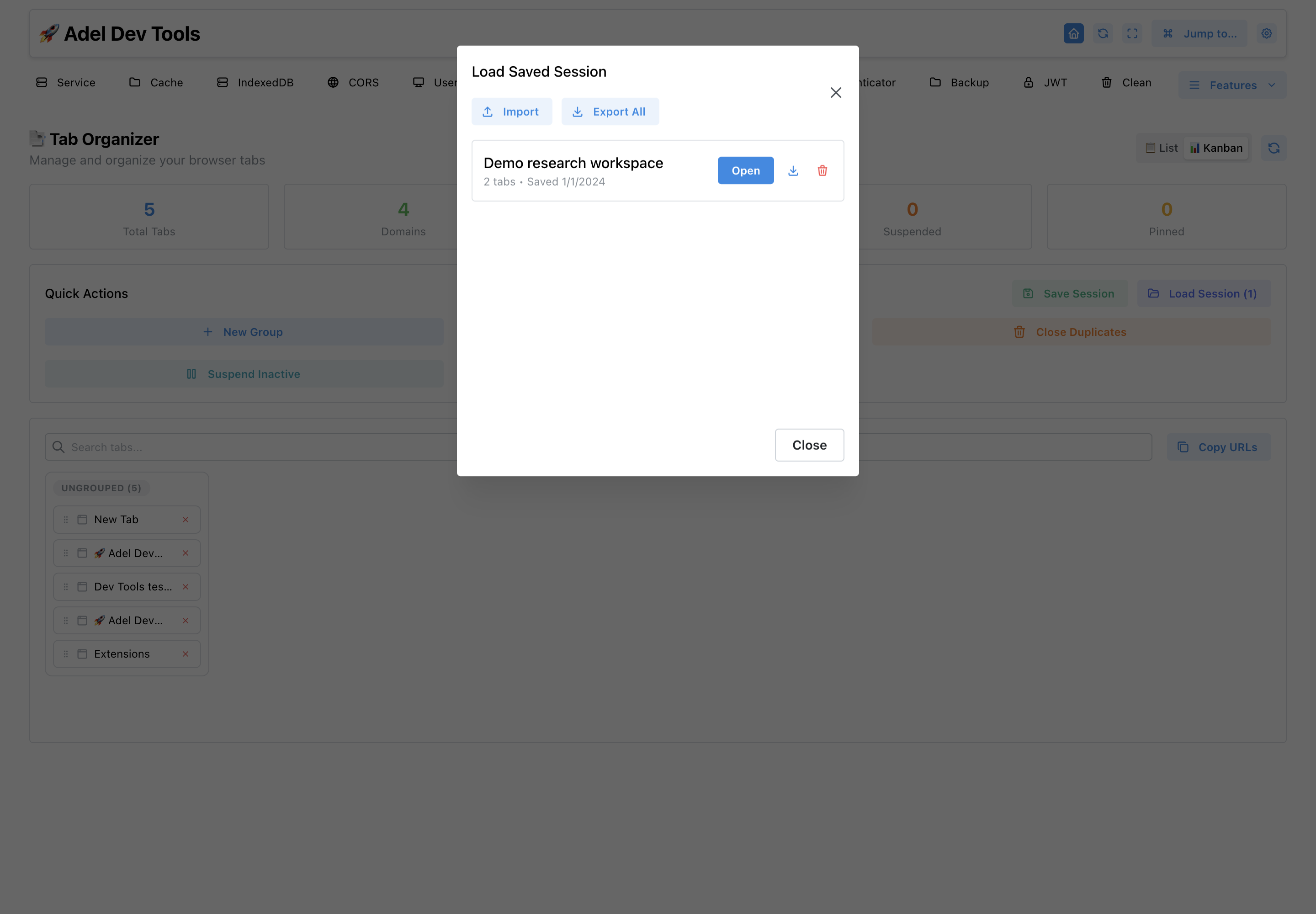
#Shows open tabs in list or Kanban view. You can select, group, move, copy, suspend, or close tabs, and save or restore named sessions.
- List and Kanban views
- Chrome tab groups
- Multi-select actions
- Saved sessions
- Session JSON export
How to use Tab Organizer
- Choose the list or Kanban view.
- Select tabs and group, move, copy, or close them.
- Name and save a session when you want to reopen the set later.
Restoring a session opens its saved URLs; page state and signed-in status remain governed by each website.
More screenshots (2)
Pixel Perfect
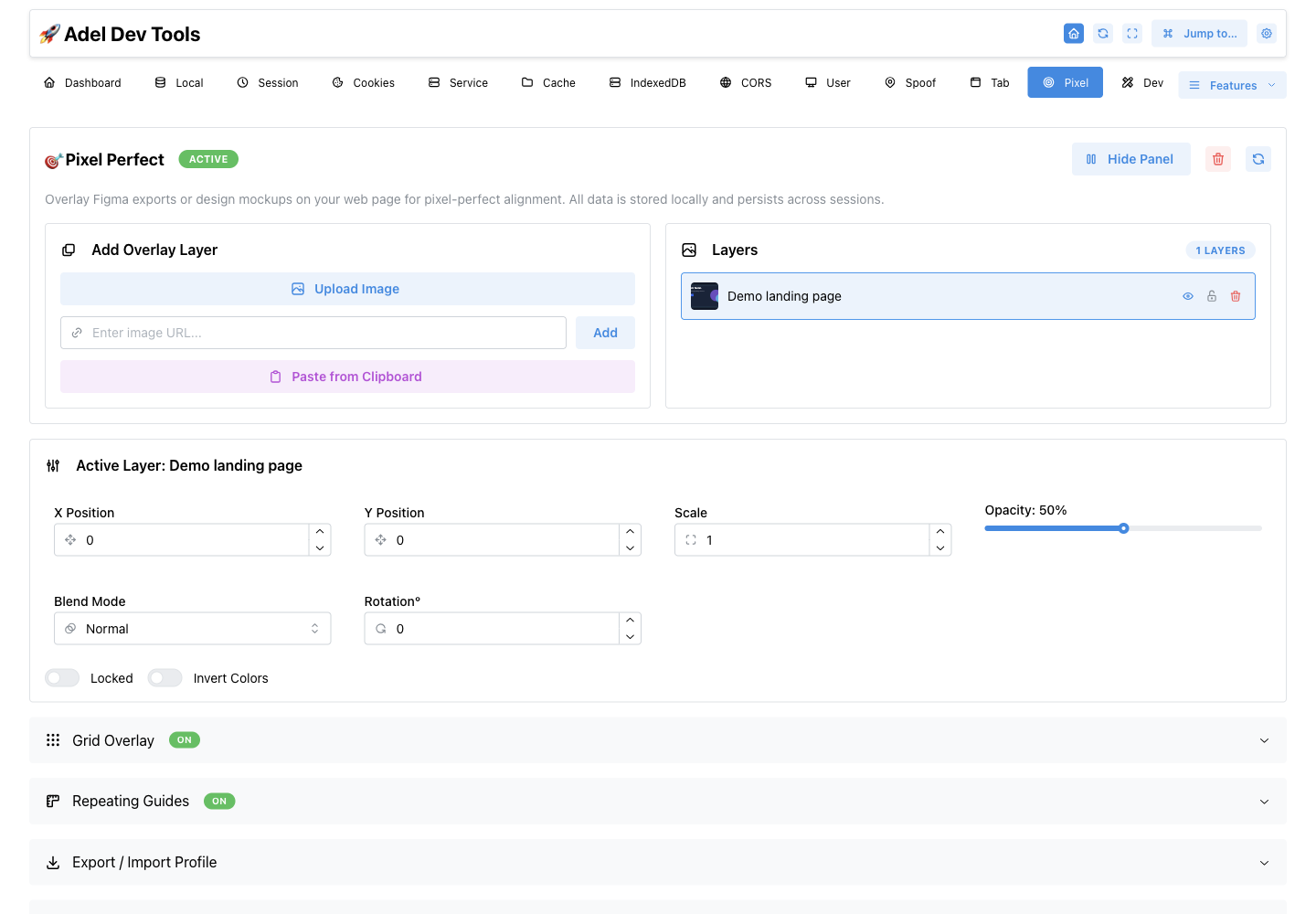
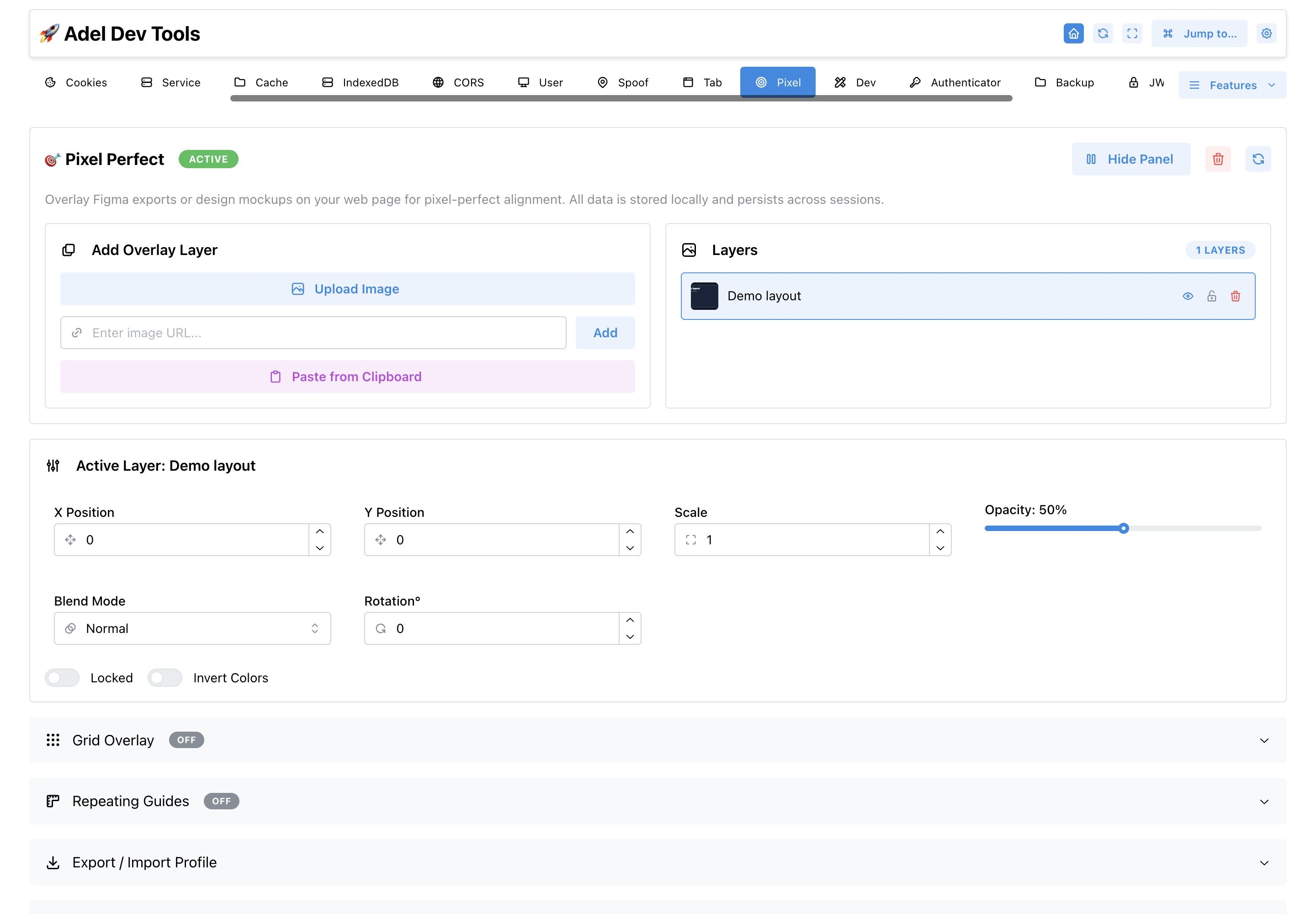
#Places one or more reference images over the selected page. Controls adjust each layer’s position, scale, opacity, blend mode, rotation, visibility, lock state, and color inversion.
- Multiple persistent layers
- Position, scale, rotation, opacity, and blend controls
- Lock, visibility, and color inversion
- Per-page and per-site persistence
- Keyboard controls

How to use Pixel Perfect
- Add a layer from a file, URL, or clipboard.
- Show the on-page panel and align the active layer.
- Adjust opacity or blend mode, then use guides or Pixel Match to verify the result.
Overlays require an injectable website tab and cannot run on restricted Chrome pages.
More screenshots (2)
Pixel Perfect Grid and Guides
#In the extension: Pixel Perfect → Pixel Perfect Grid and Guides
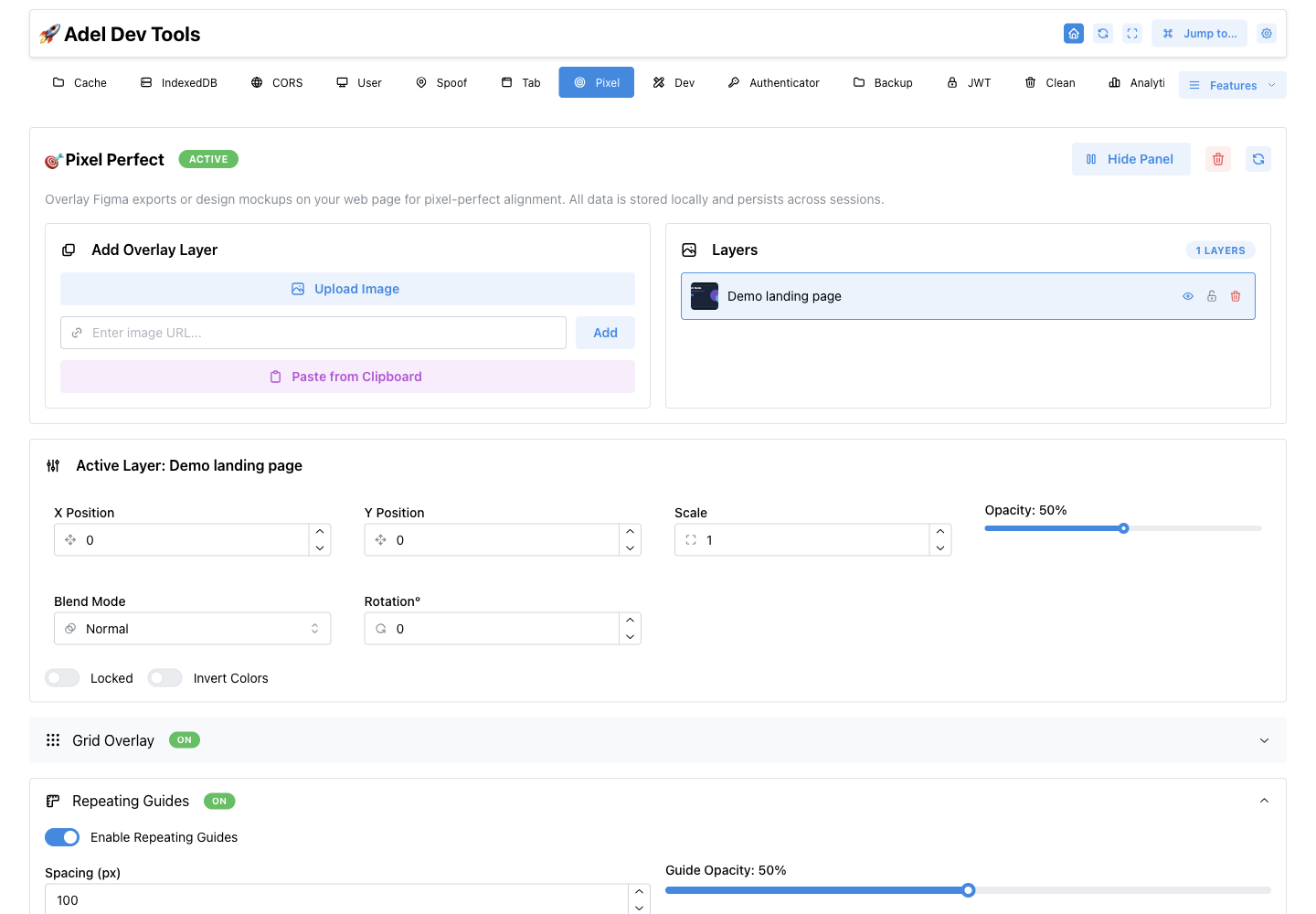
Adds a configurable column grid or repeating spacing guides over the selected page. Controls set container width, columns, gutters, spacing, and opacity.
- Column grids
- Container width
- Column and gutter controls
- Repeating spacing guides
How to use Pixel Perfect Grid and Guides
- Open Pixel Perfect and expand Grid & Guides.
- Enable a column grid or repeating guides.
- Set container, column, gutter, or spacing values and compare the page.
Pixel Match
#In the extension: Pixel Perfect → Pixel Match
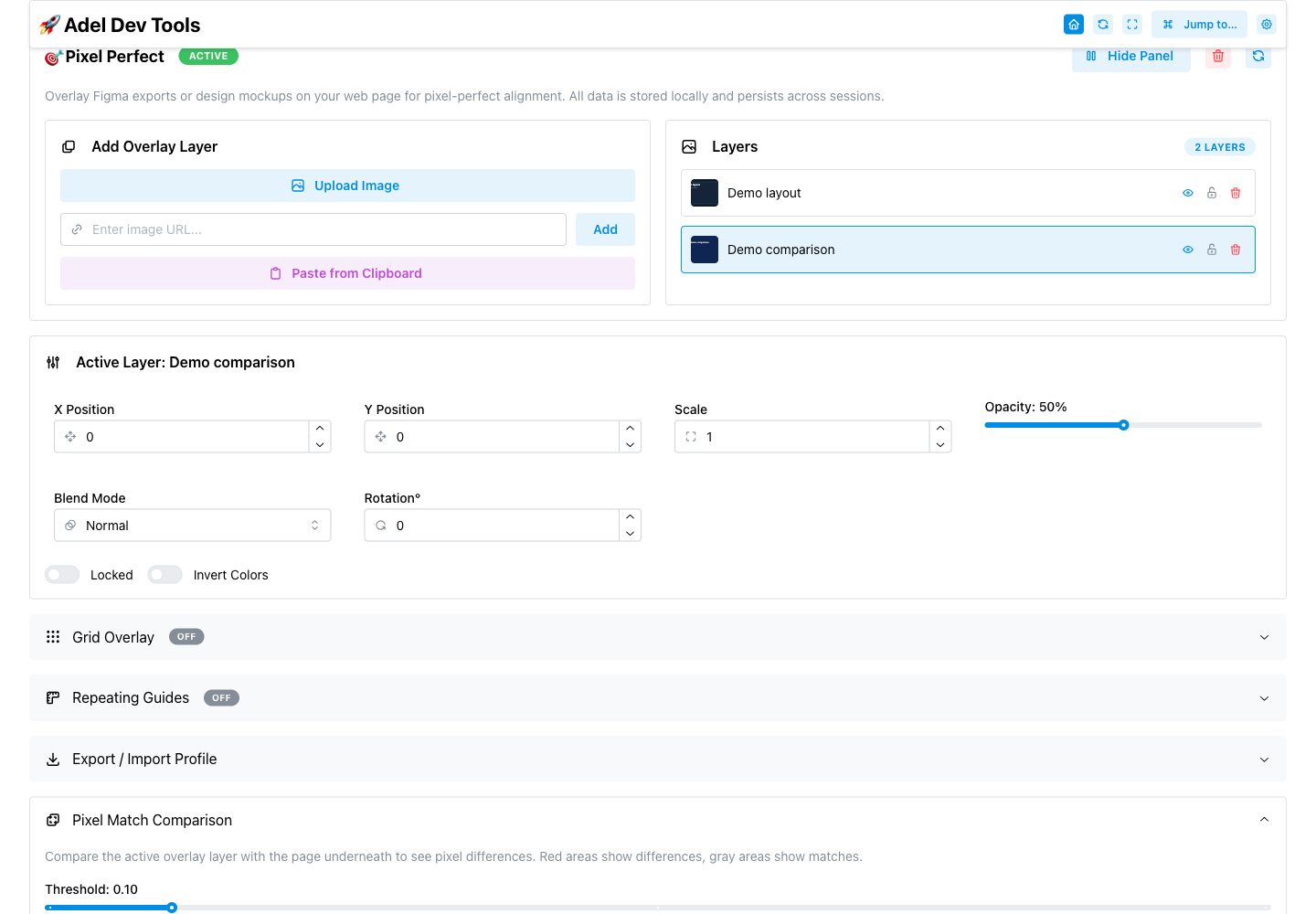
Compares the active reference layer with the rendered page using an adjustable threshold. The result includes a downloadable PNG difference image.
- Threshold control
- Comparison results
- Downloadable PNG diff
How to use Pixel Match
- Align and activate a reference layer.
- Choose a comparison threshold.
- Run Pixel Match and inspect or download the diff image.
Useful comparison requires the reference layer to be aligned and scaled to the page first.
Pixel Perfect Profiles
#In the extension: Pixel Perfect → Pixel Perfect Profiles
Exports the current Pixel Perfect layers and guide settings as JSON and imports them later. Export data can be copied or downloaded.
- Profile export
- Clipboard copy
- JSON download
- Profile import
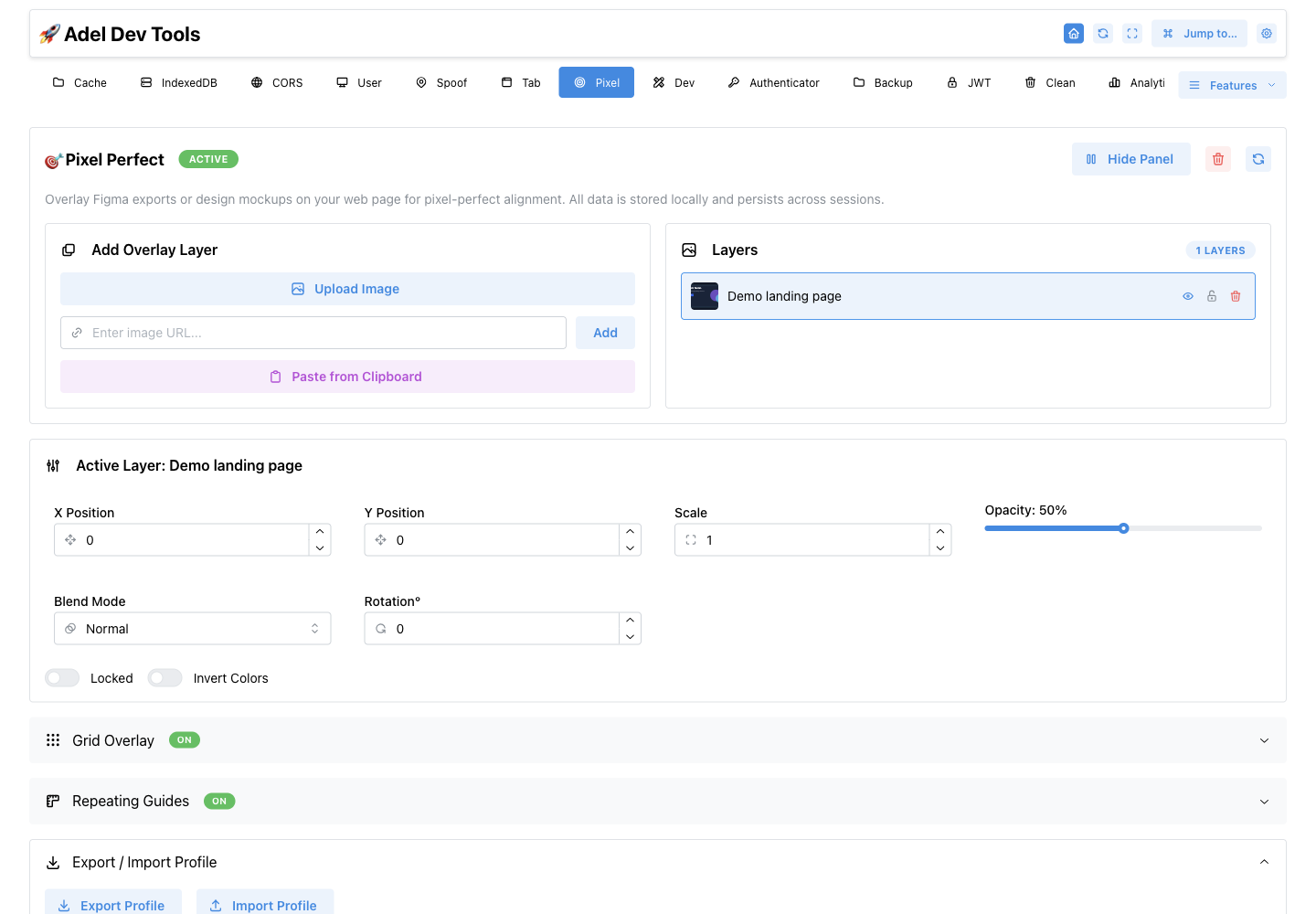
How to use Pixel Perfect Profiles
- Configure layers and guides.
- Export and download or copy the profile JSON.
- Paste profile JSON into Import when you need the setup again.
Developer Tools
#Contains the API Tester, Mock Data, Performance, CSS Injector, Crypto Tools, Debug Utils, and Advanced Tools tabs.
- API Tester
- Mock Data
- Performance
- CSS Injector
- Crypto Tools
- Debug Utils
- Advanced Tools
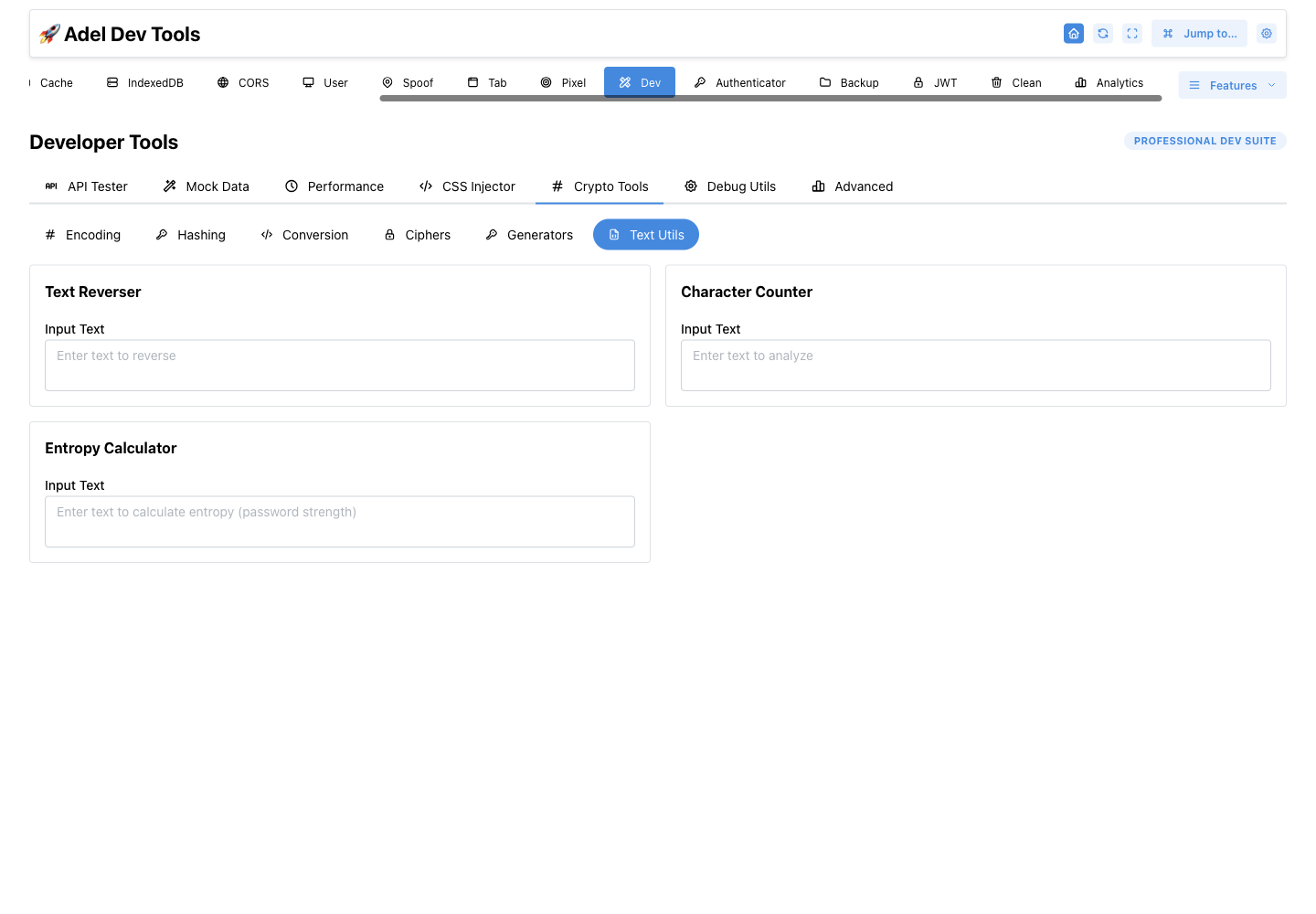
How to use Developer Tools
- Open Dev Tools from the main navigation.
- Choose the tab that matches the task.
- Work against the selected website or copy the generated result.
Tabs that act on a page need an ordinary injectable website tab; standalone generators can run without one.
API Tester
#In the extension: Developer Tools → API Tester
Sends HTTP requests with controls for method, URL, headers, content type, body, timeout, credentials, and redirects. The response panel shows formatted output, status, size, and elapsed time.
- GET, POST, PUT, DELETE, PATCH, HEAD, and OPTIONS
- JSON header editor
- Request bodies
- Timeout and redirect controls
- Response timing, size, copy, and formatting
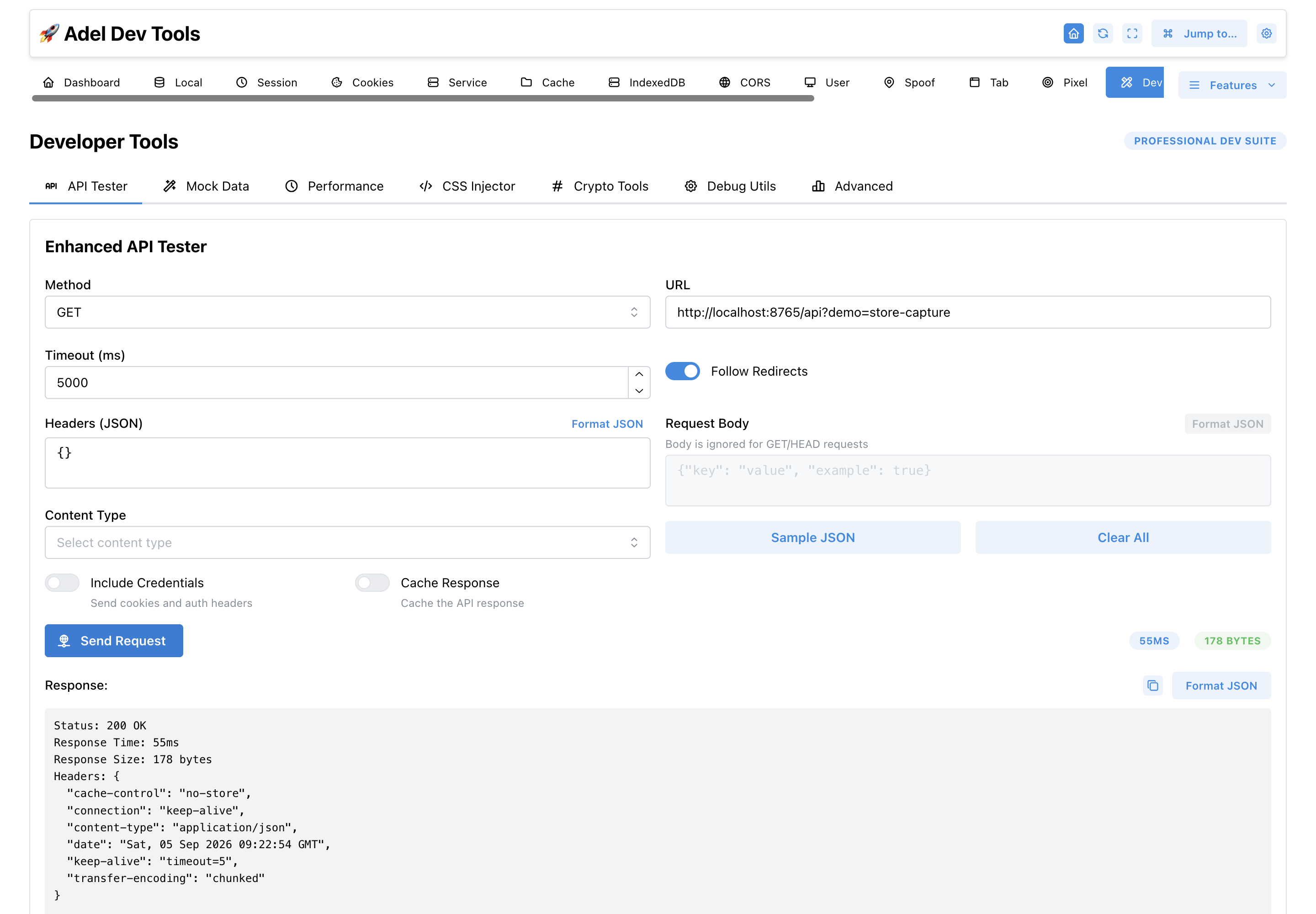
How to use API Tester
- Choose a method and enter the URL.
- Add headers and a body when the method supports one.
- Send the request and inspect status, timing, size, and formatted response.
The destination still enforces its own authentication and browser network rules.
More screenshots (1)
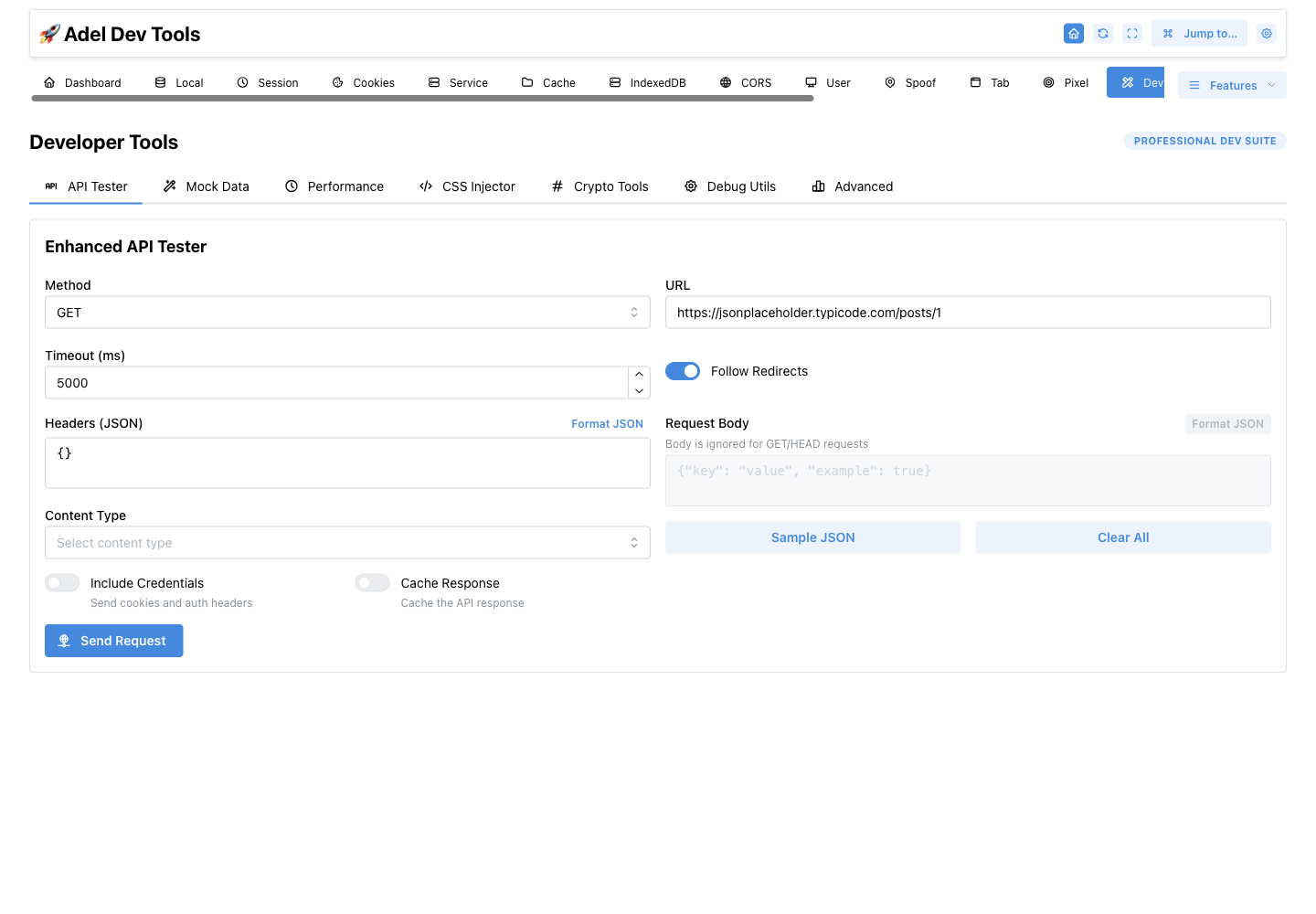
Mock Data
#In the extension: Developer Tools → Mock Data
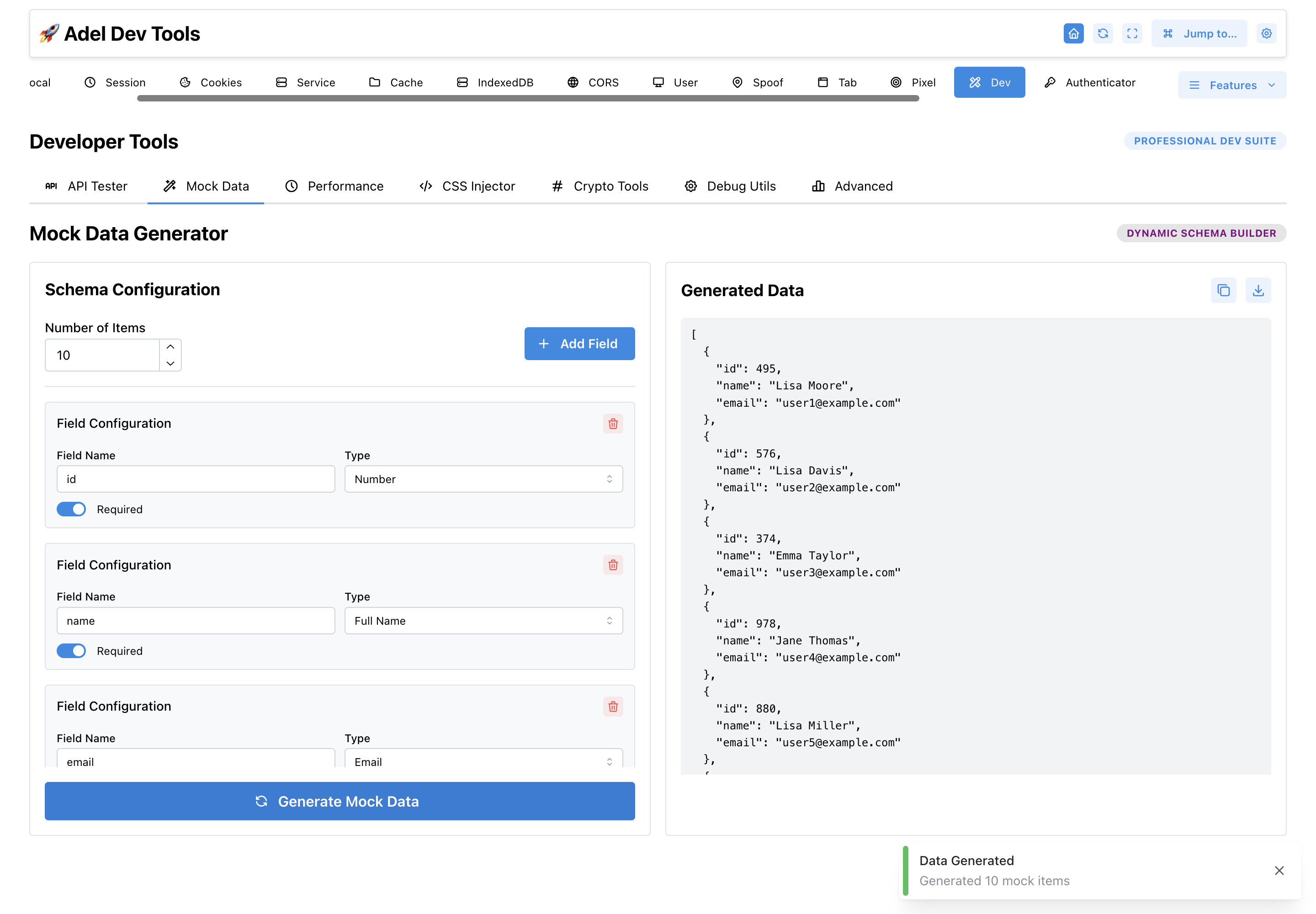
Generates an array of sample objects from a field schema. Controls set the item count, field names, data types, options, and required fields.
- Custom field names
- Multiple generated data types
- Required-field controls
- Configurable item count
- Generated JSON output
How to use Mock Data
- Choose the number of items.
- Add fields, select their types, and configure any options.
- Generate and copy or export the resulting data.
Website Performance
#In the extension: Developer Tools → Website Performance
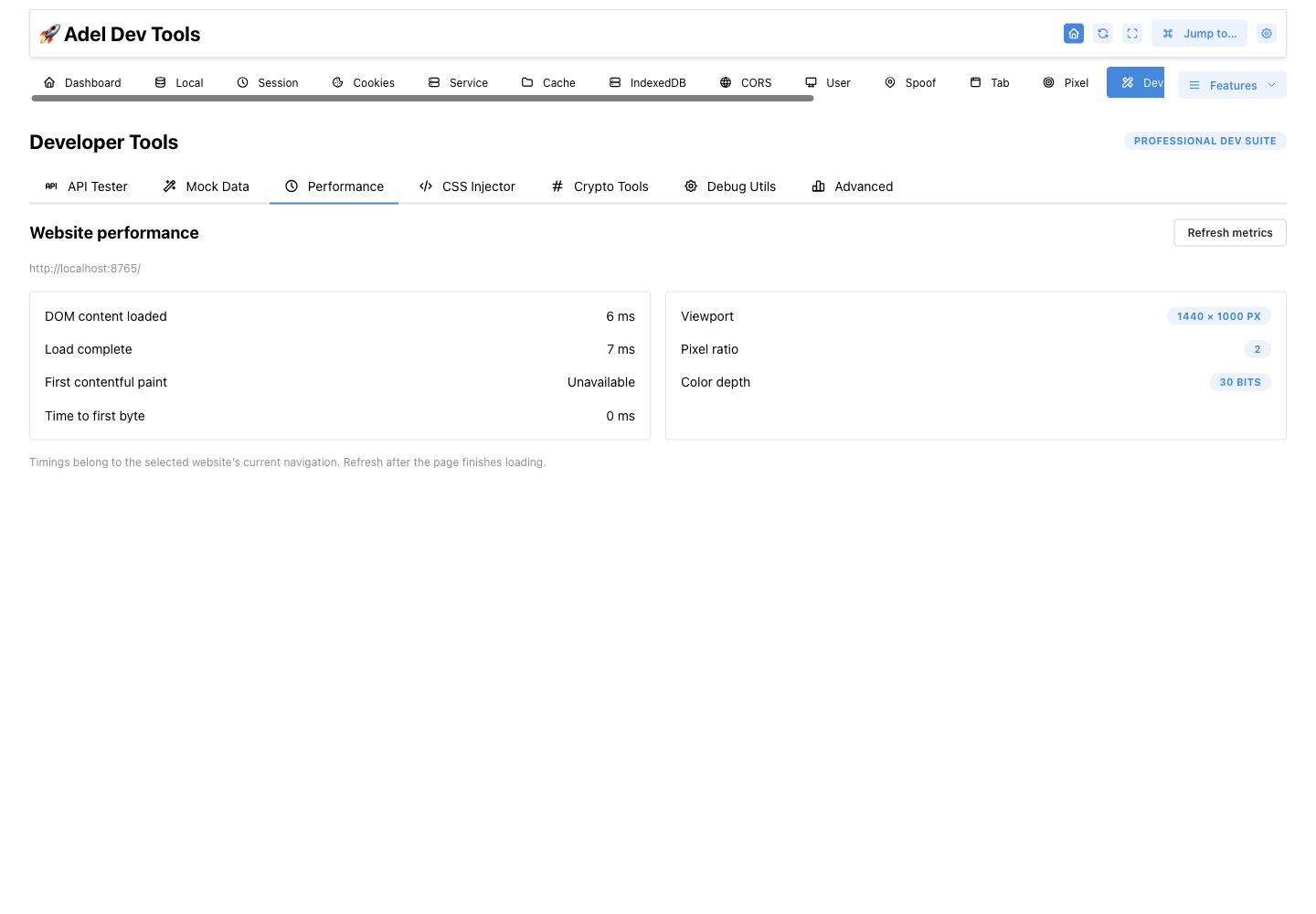
Reads navigation timing from the selected website and shows DOM ready, load, first-contentful-paint, and time-to-first-byte values. It also shows viewport, pixel ratio, and color depth.
- DOM content loaded
- Load complete
- First contentful paint
- Time to first byte
- Viewport, pixel ratio, and color depth
How to use Website Performance
- Open the website to measure.
- Choose Dev Tools, then Performance.
- Refresh metrics after the page finishes loading.
These are current-navigation browser timings, not a controlled lab benchmark or field-data report.
CSS Injector
#In the extension: Developer Tools → CSS Injector
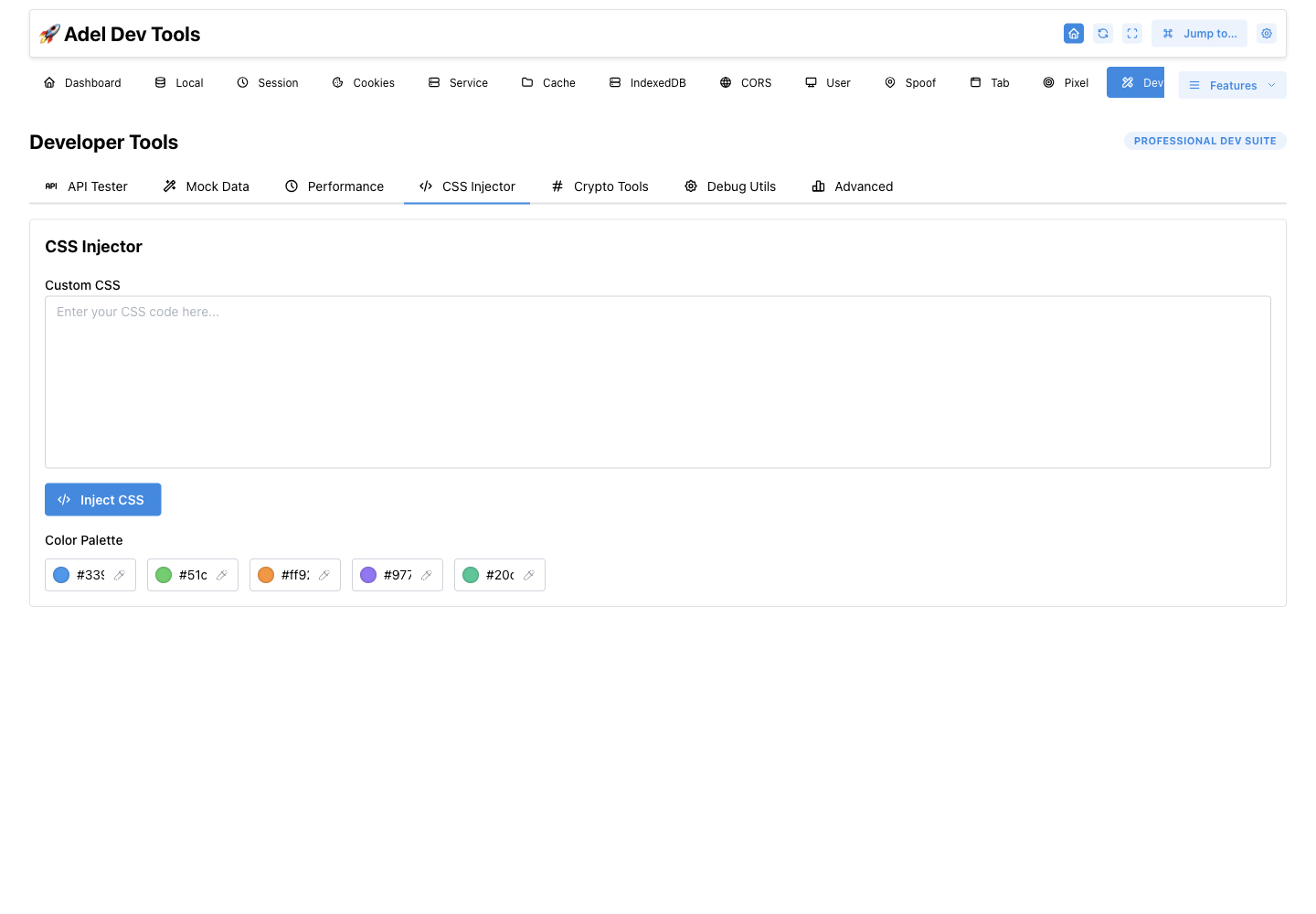
Applies the CSS entered in the editor to the selected page and removes it with the same control. The tab also includes an editable color palette and eyedroppers.
- Multiline CSS editor
- Inject and remove toggle
- Active-state indicator
- Editable color palette with eyedropper
How to use CSS Injector
- Open the target website.
- Enter the CSS and choose Inject CSS.
- Review the page, then choose Remove CSS when finished.
Injected styles are a temporary page-level experiment and may lose to more specific or inline styles.
Crypto Tools
#In the extension: Developer Tools → Crypto Tools
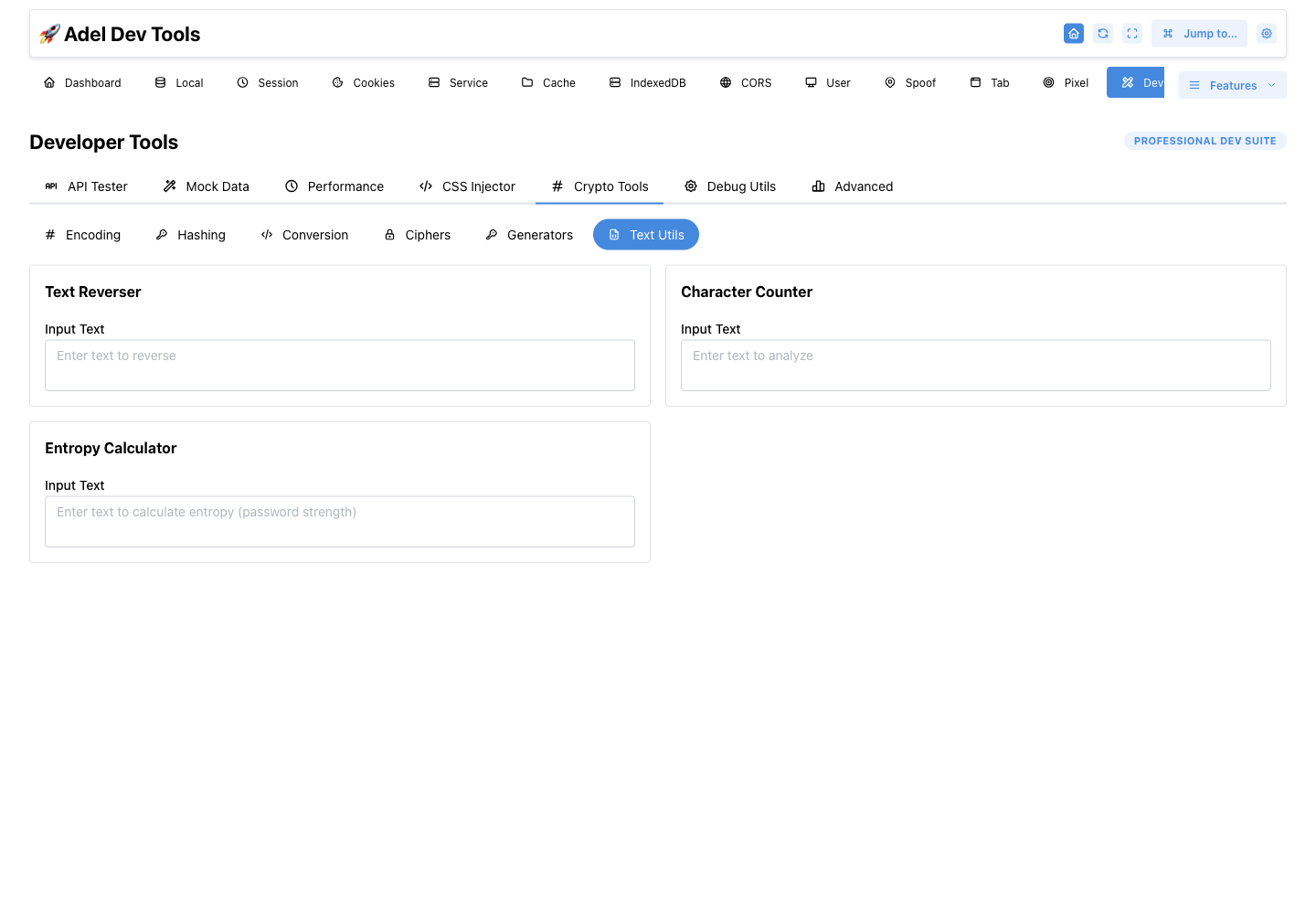
Contains Encoding, Hashing, Conversion, Ciphers, Generators, and Text Utils tabs. Each operation runs in the browser and exposes copyable output.
- Encoding
- Hashing and JWT inspection
- Text and numeric conversion
- Ciphers
- Generators
- Text utilities
How to use Crypto Tools
- Choose a nested tool tab.
- Enter the source text and any requested key or option.
- Run the operation and copy the result.
Classical ciphers and convenience generators are development utilities, not a substitute for a reviewed security design.
Encoding
#In the extension: Developer Tools → Crypto Tools → Encoding
Encodes and decodes URL and HTML text, formats or minifies JSON, and encodes or decodes Base64.
- URL encode and decode
- HTML entity encode and decode
- JSON string escaping
- Base64 encode and decode
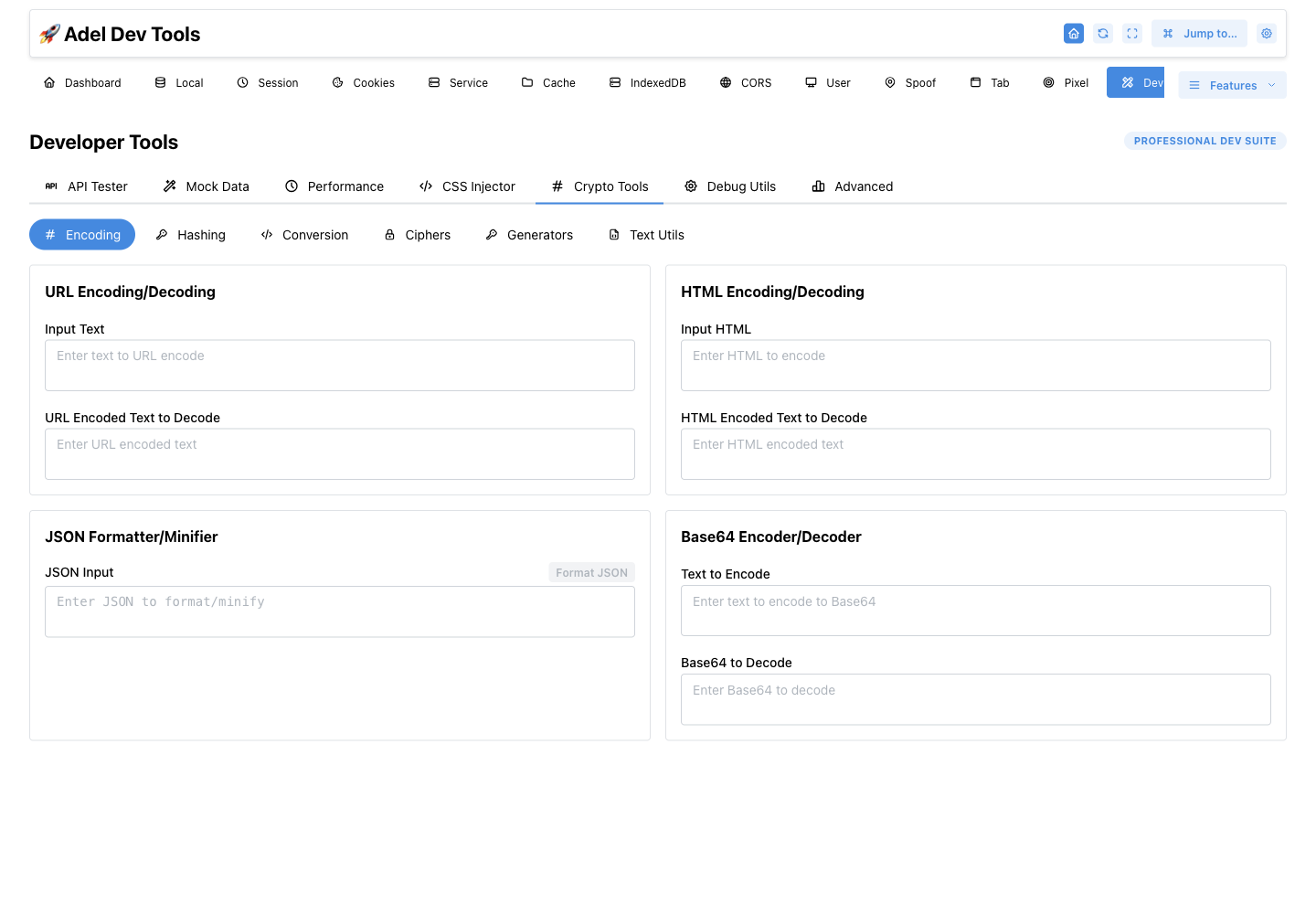
How to use Encoding
- Choose Encoding.
- Paste the source into the relevant encoder or decoder.
- Copy the transformed result.
Hashing
#In the extension: Developer Tools → Crypto Tools → Hashing
Generates several message digests from one input and decodes JWT structure in a separate panel.
- Browser-side hashing
- Multiple digest formats
- JWT structure decoding
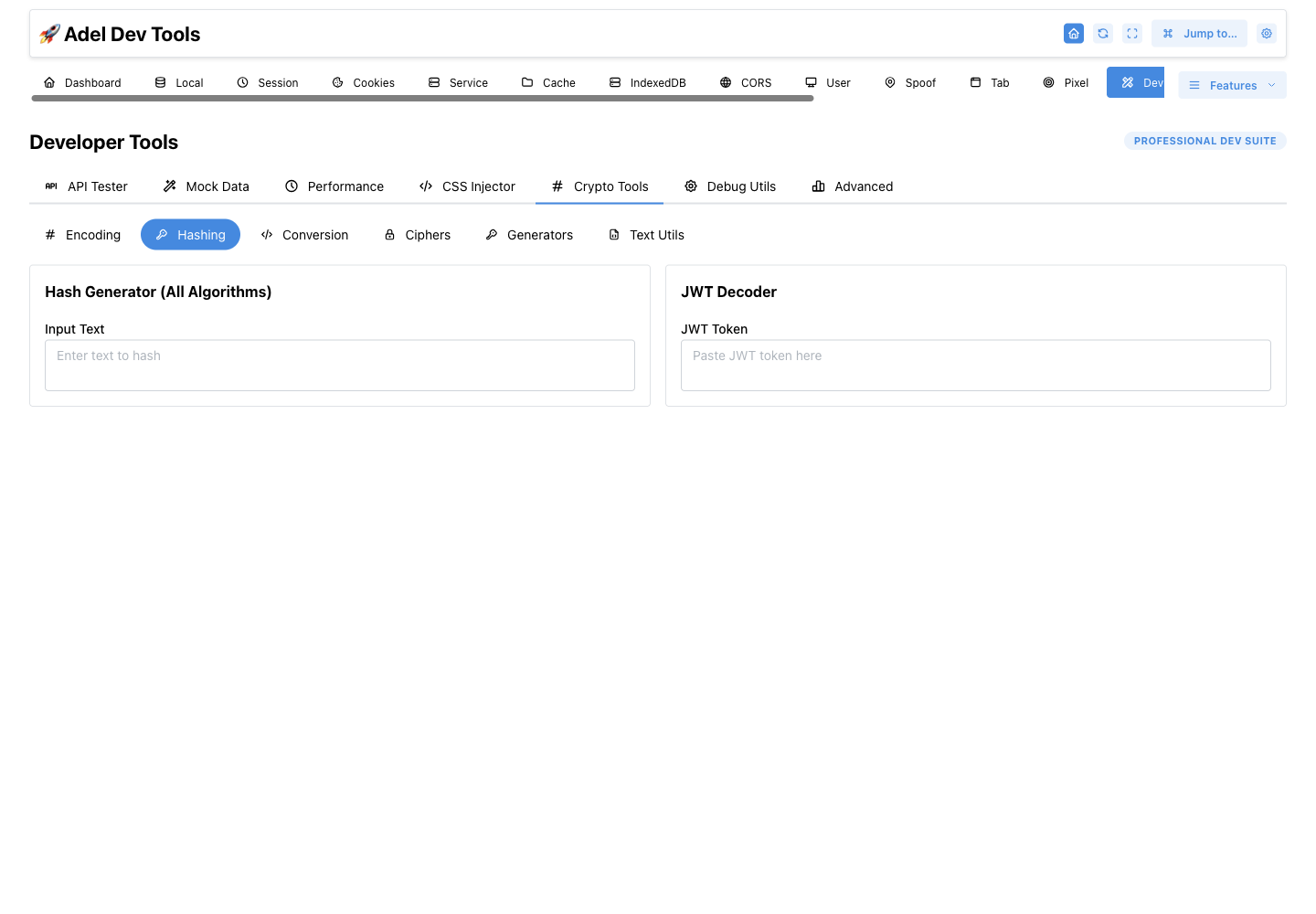
How to use Hashing
- Choose Hashing.
- Enter text or a JWT.
- Generate and copy the digest or decoded fields.
A matching hash checks content equality, not authenticity; JWT decoding does not verify signatures.
Conversion
#In the extension: Developer Tools → Crypto Tools → Conversion
Converts text to hexadecimal or binary and converts hexadecimal or binary values back to text.
- Text to hex
- Hex to text
- Text to binary
- Binary to text
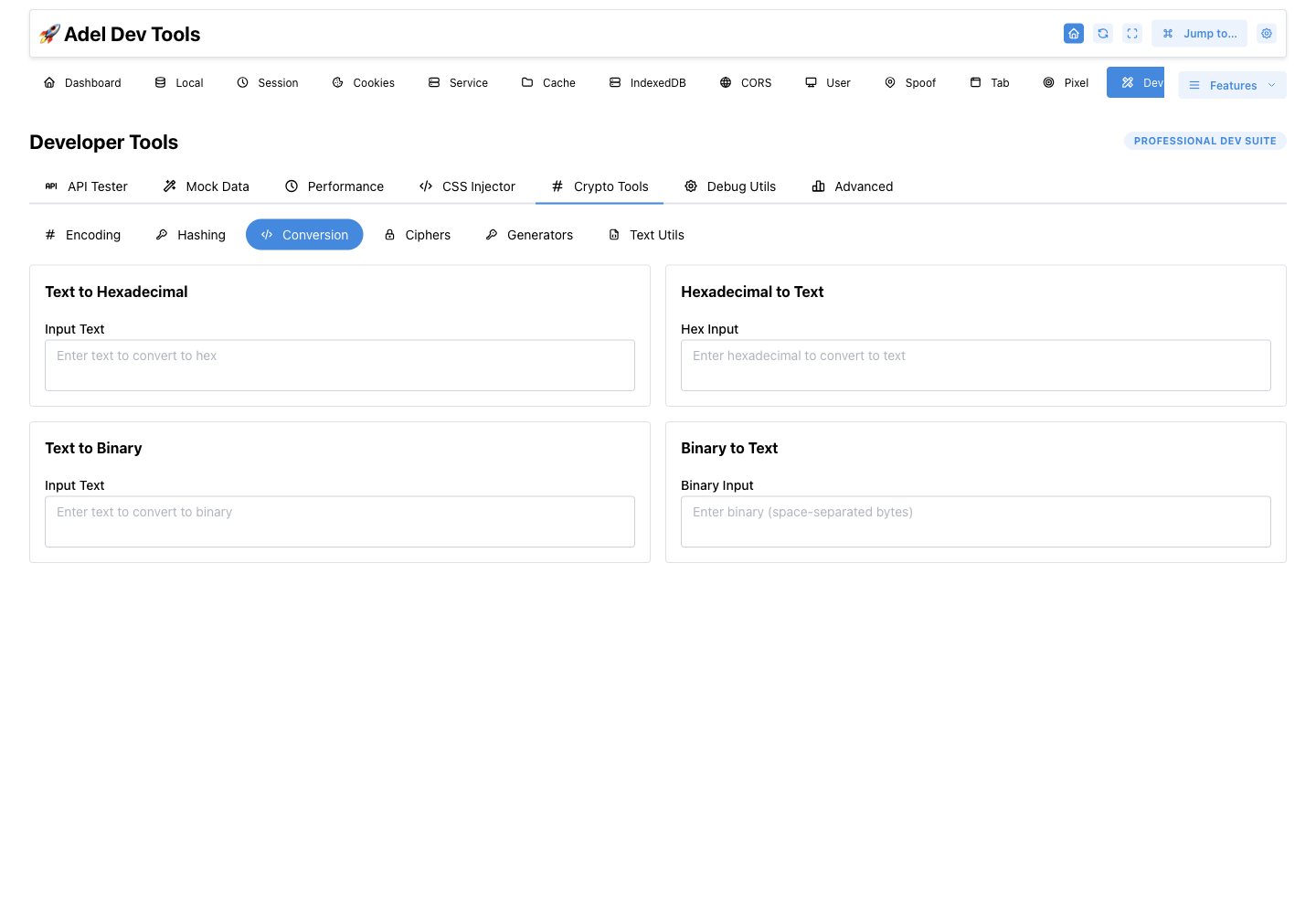
How to use Conversion
- Choose Conversion.
- Enter text, hex, or binary in the matching panel.
- Convert and copy the output.
Ciphers
#In the extension: Developer Tools → Crypto Tools → Ciphers
Provides ROT13, Caesar, AES-256 encrypt and decrypt, Atbash, Vigenère, XOR, and Morse-code controls.
- ROT13
- Caesar shift
- AES encrypt and decrypt
- XOR
- Text and Morse conversion
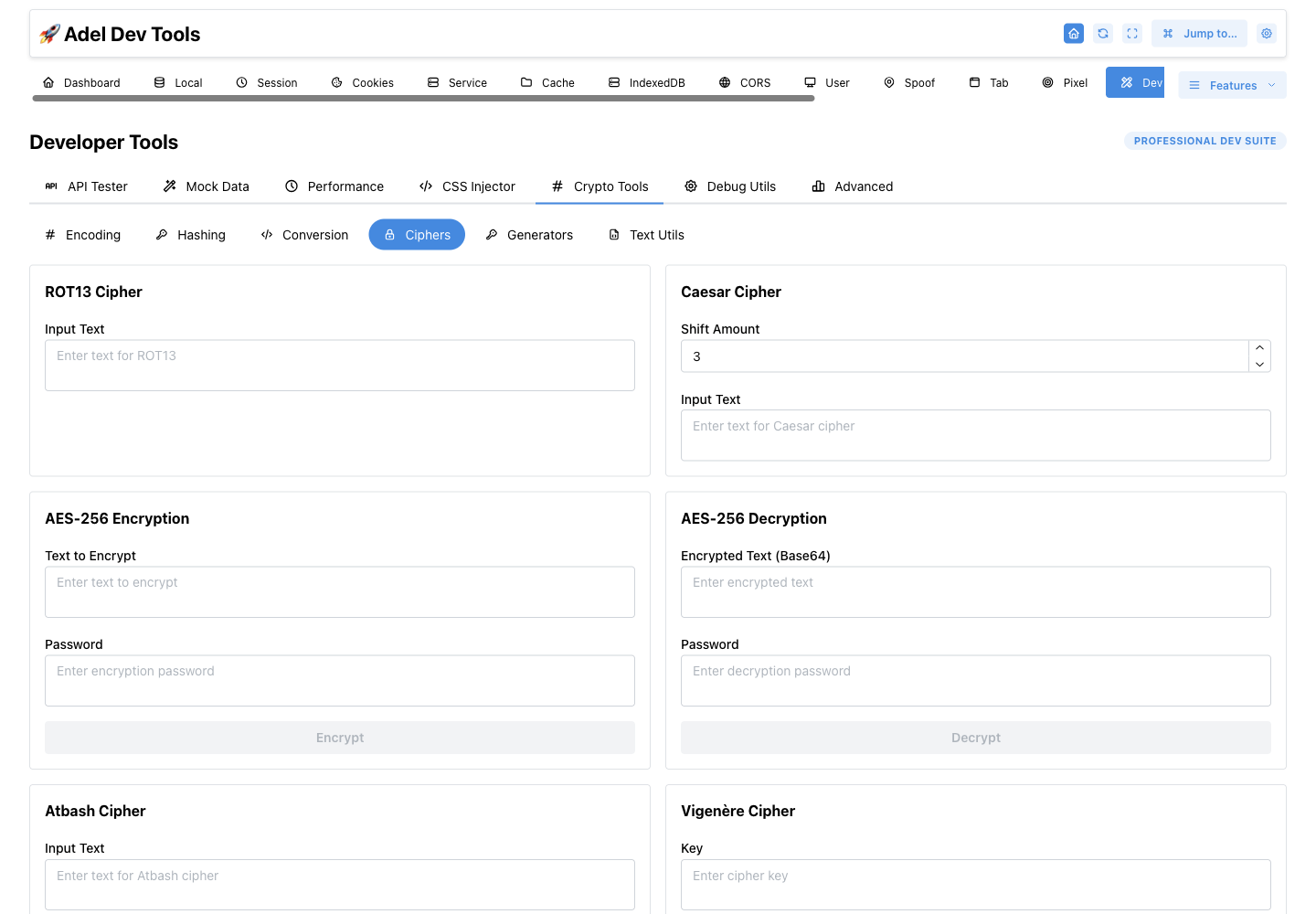
How to use Ciphers
- Choose Ciphers and the required operation.
- Enter the text plus shift, password, or key when requested.
- Run the transformation and copy the result.
Use established application protocols and key management for production encryption.
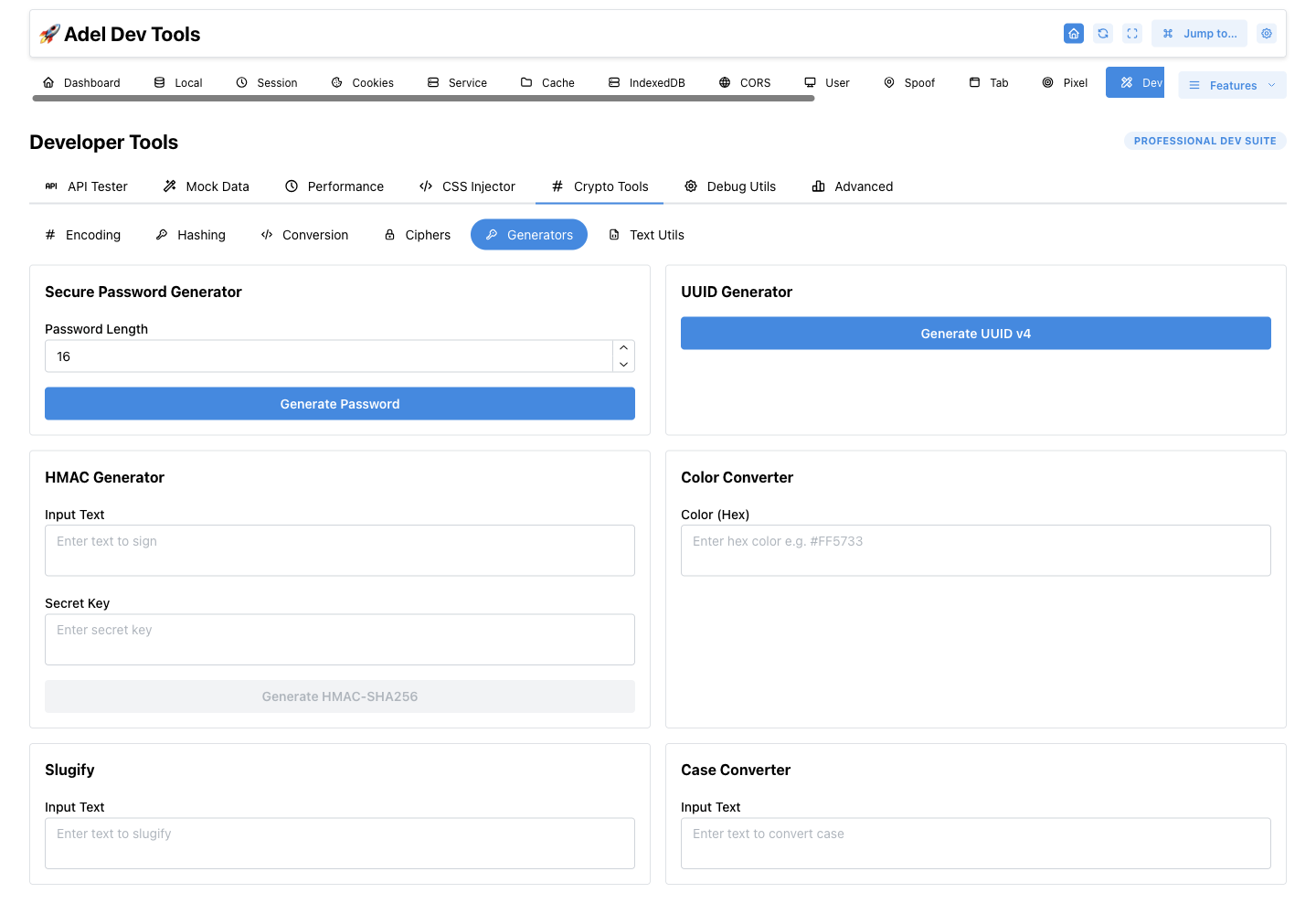
Generators
#In the extension: Developer Tools → Crypto Tools → Generators
Generates passwords, UUIDs, and HMAC-SHA256 values. It also converts colors, creates slugs, and changes text case.
- Password generation
- UUID generation
- HMAC generation
- Color conversion
- Slug and case conversion
How to use Generators
- Choose Generators.
- Select a generator and set its options.
- Generate and copy the result.
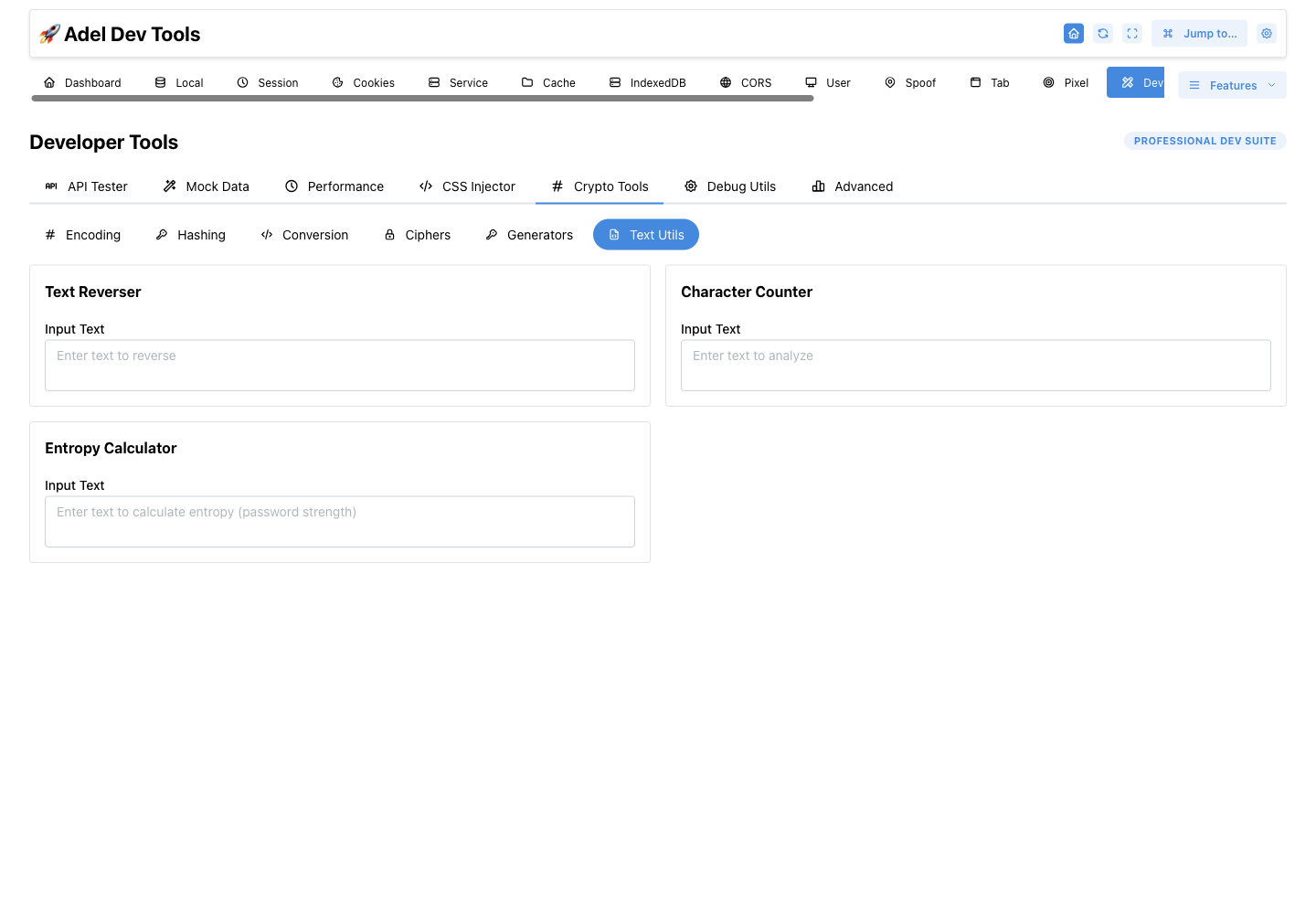
Crypto Text Utilities
#In the extension: Developer Tools → Crypto Tools → Crypto Text Utilities
Reverses text, counts characters and words, and calculates text entropy.
- Text reversal
- Character and word counting
- Entropy calculation
How to use Crypto Text Utilities
- Choose Utilities.
- Paste the text into the relevant utility.
- Review and copy the derived output.
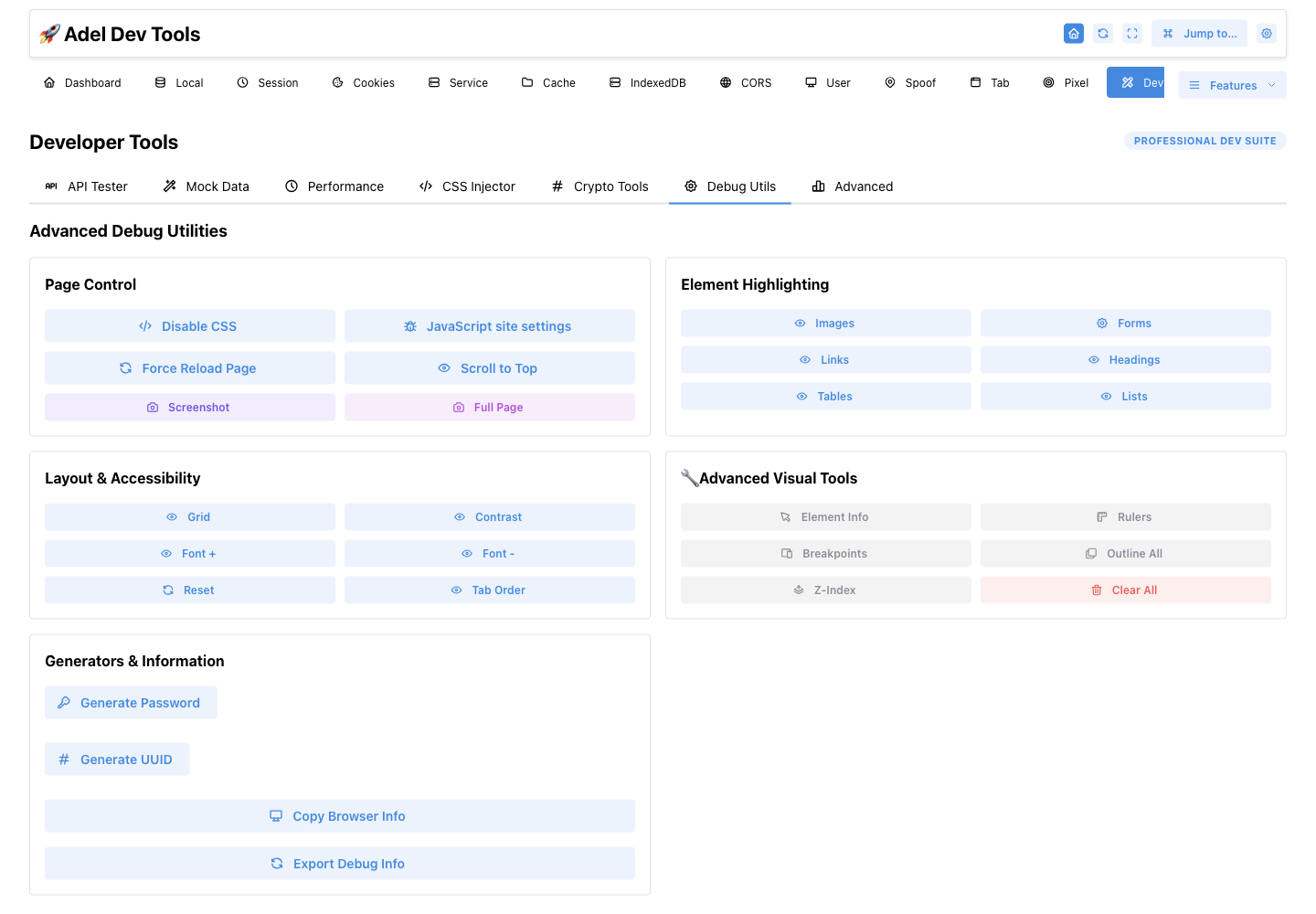
Debug Utils
#In the extension: Developer Tools → Debug Utils
Provides buttons for page reload and scrolling, CSS toggling, screenshots, element highlighting, layout and accessibility overlays, and browser information. It also generates passwords and UUIDs.
- CSS toggle, reload, print, and scrolling controls
- Element highlighting and information
- Grid, rulers, outlines, z-index labels, and breakpoint indicators
- Font-size and tab-order accessibility checks
- Screenshots, password and UUID generation, browser and debug information
How to use Debug Utils
- Open the target website and choose Debug Utils.
- Run a page-control, layout, accessibility, or visual action.
- Clear the active overlays when the inspection is complete.
Page actions and captures require content-script access to an ordinary website tab.
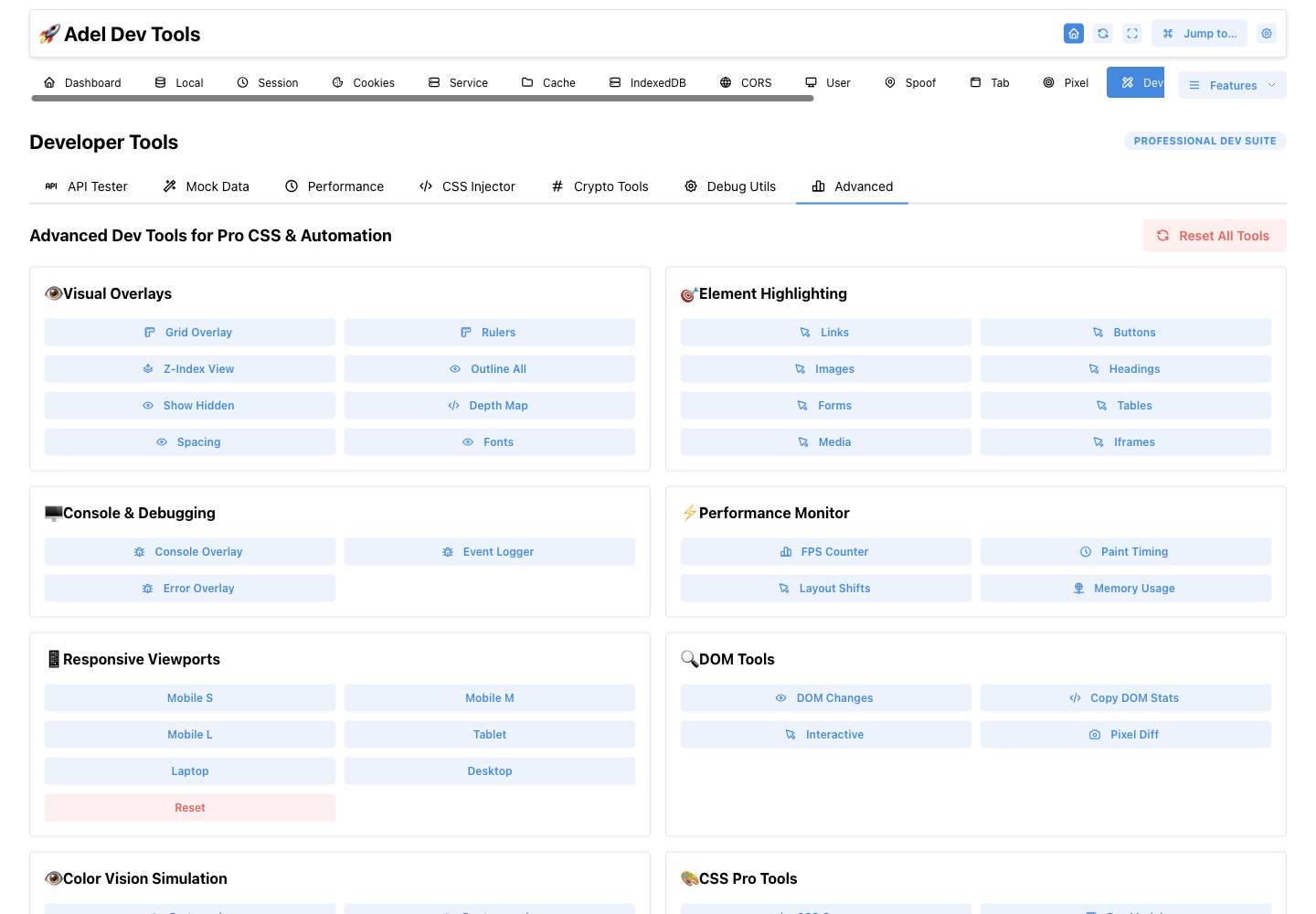
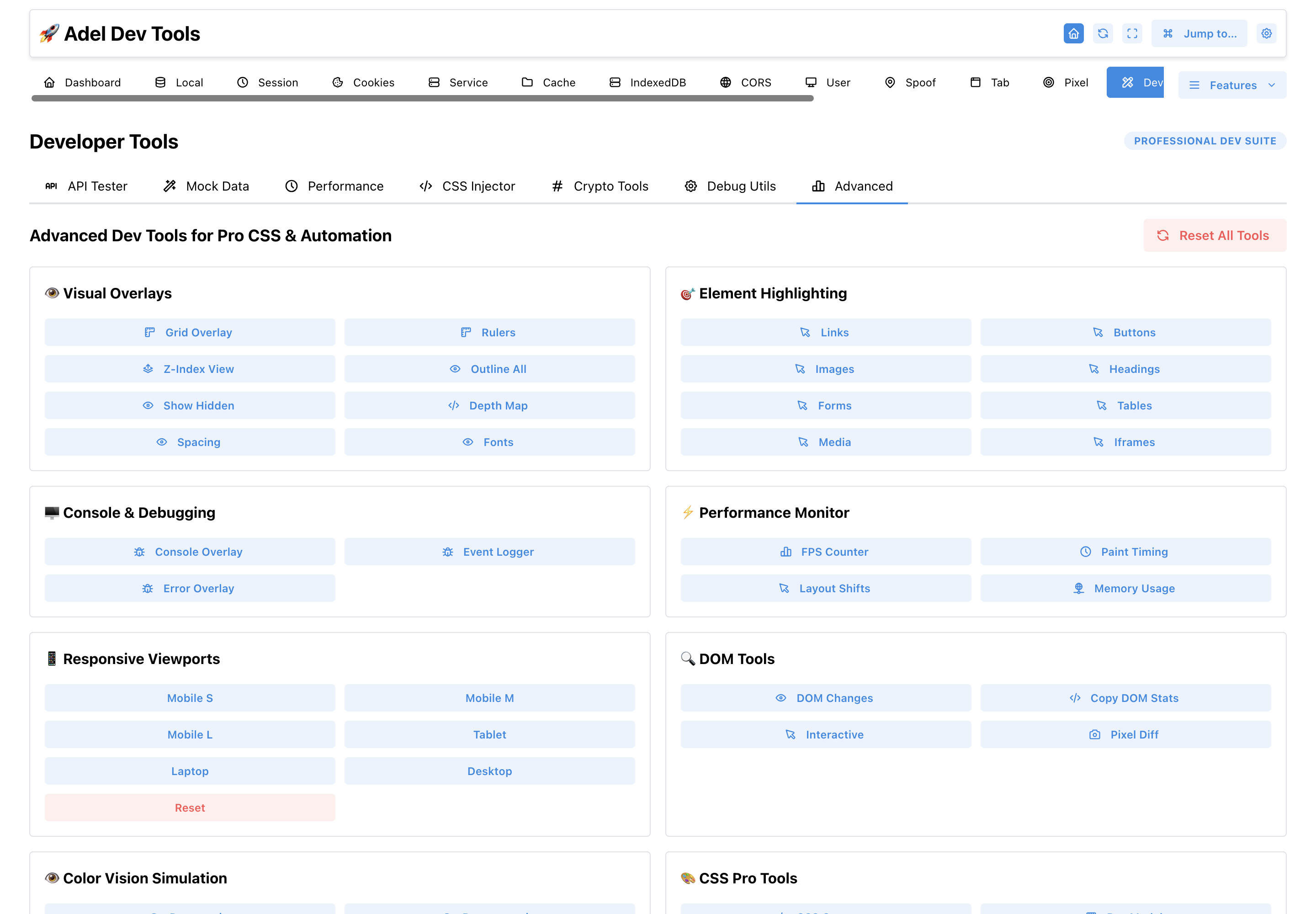
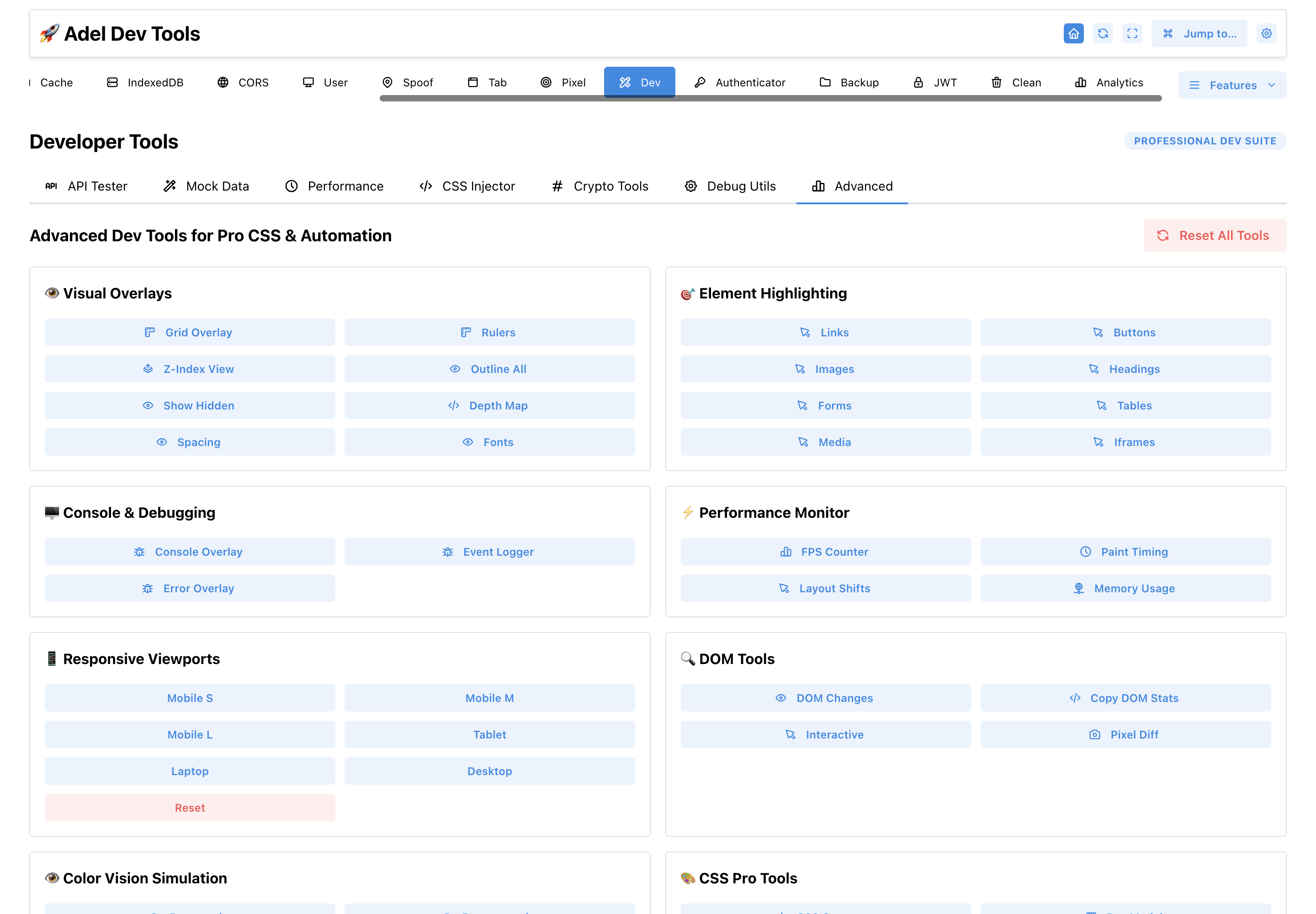
Advanced Tools
#In the extension: Developer Tools → Advanced Tools
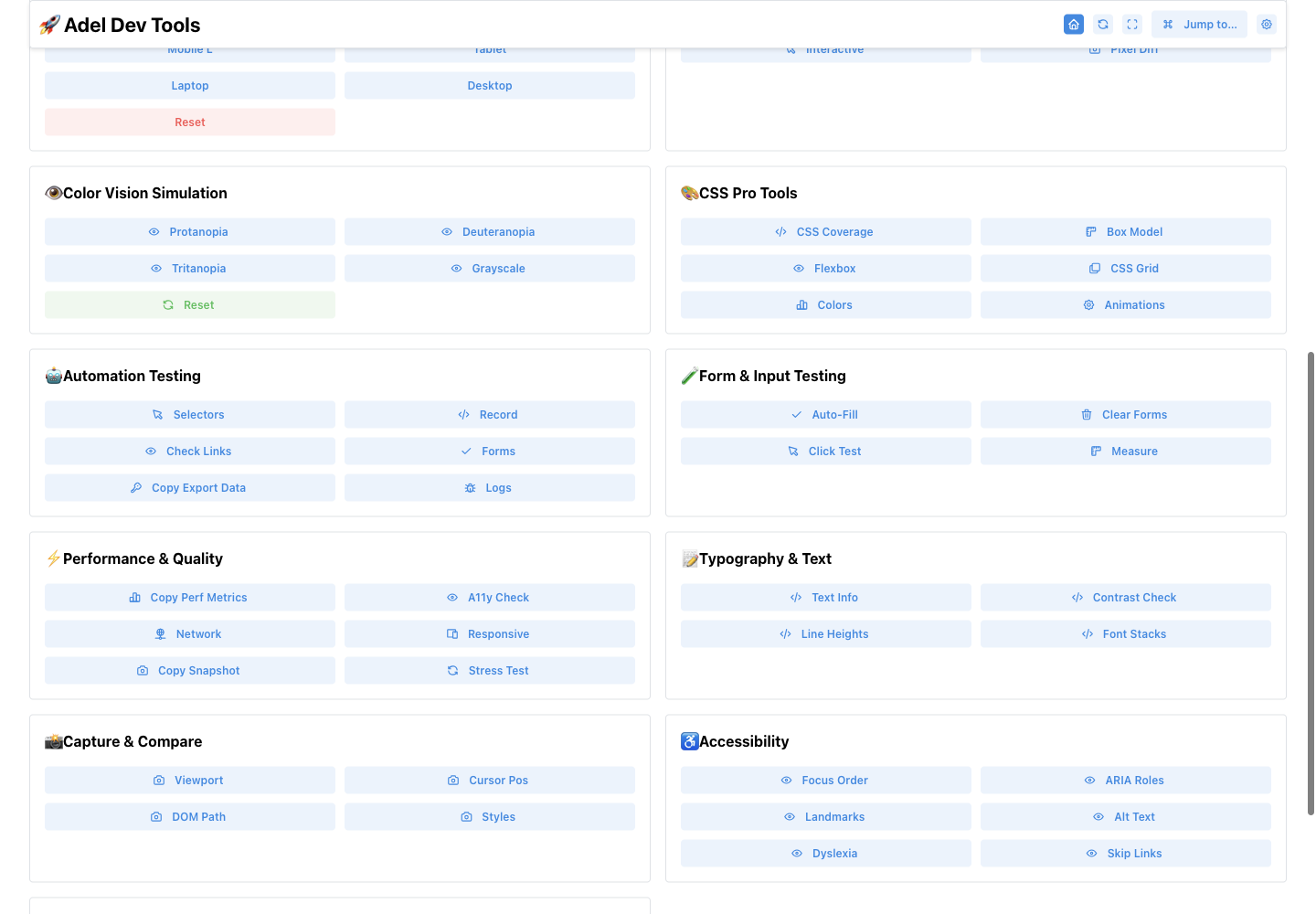
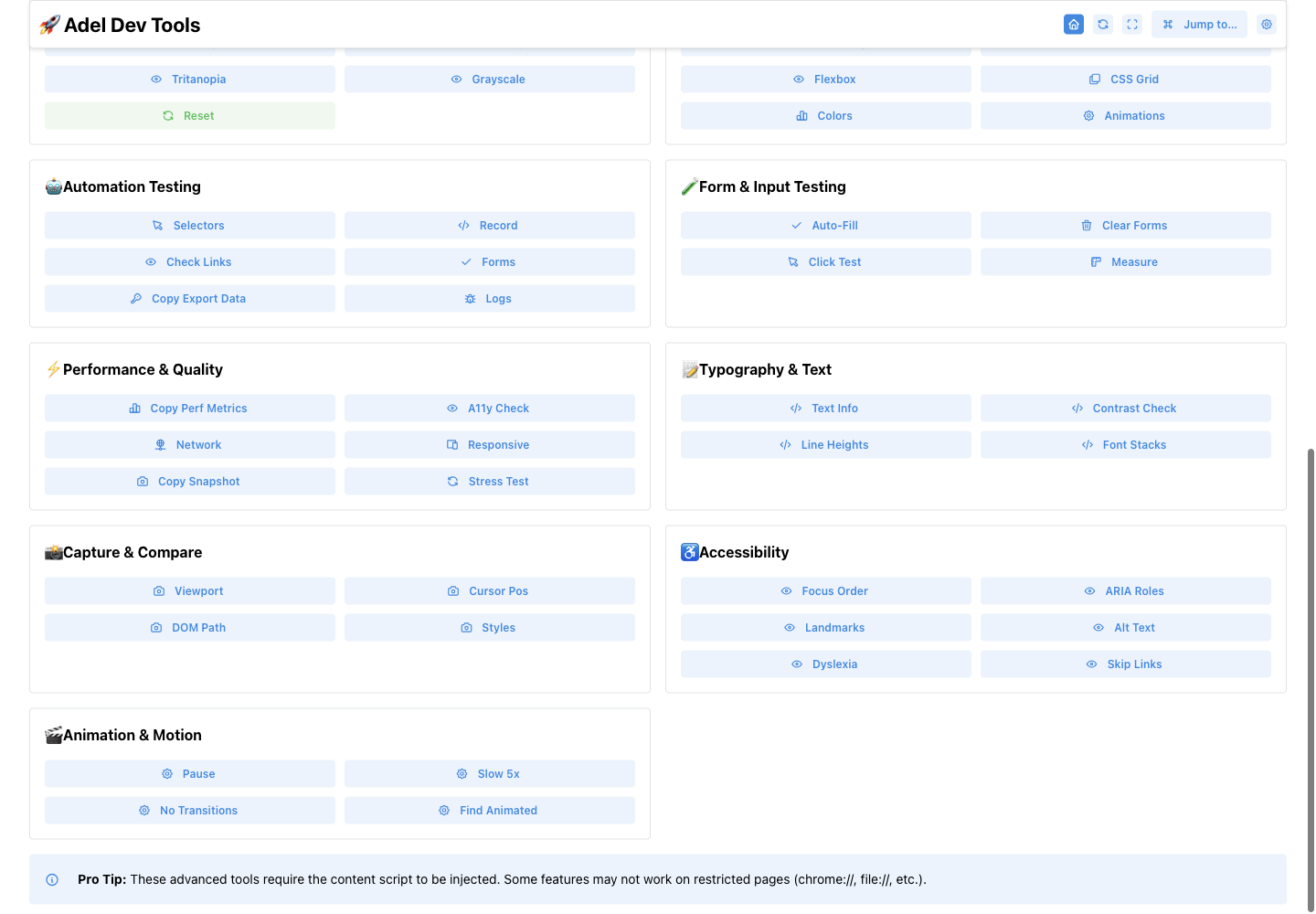
Provides page-level controls for visual overlays, element highlighting, console and performance monitors, responsive sizes, DOM inspection, throttling, CSS inspection, forms, automation, capture, accessibility, typography, and animation.
- Visual overlays and element highlighting
- Console and performance monitoring
- Responsive viewport and throttling simulation
- DOM, CSS, form, and automation helpers
- Capture, accessibility, typography, and animation checks
How to use Advanced Tools
- Open the target page and choose Advanced Tools.
- Run the relevant section’s action or overlay.
- Inspect the page and use Reset All Tools when finished.
These tools need content-script access and do not run on restricted pages such as chrome:// URLs.
More screenshots (3)
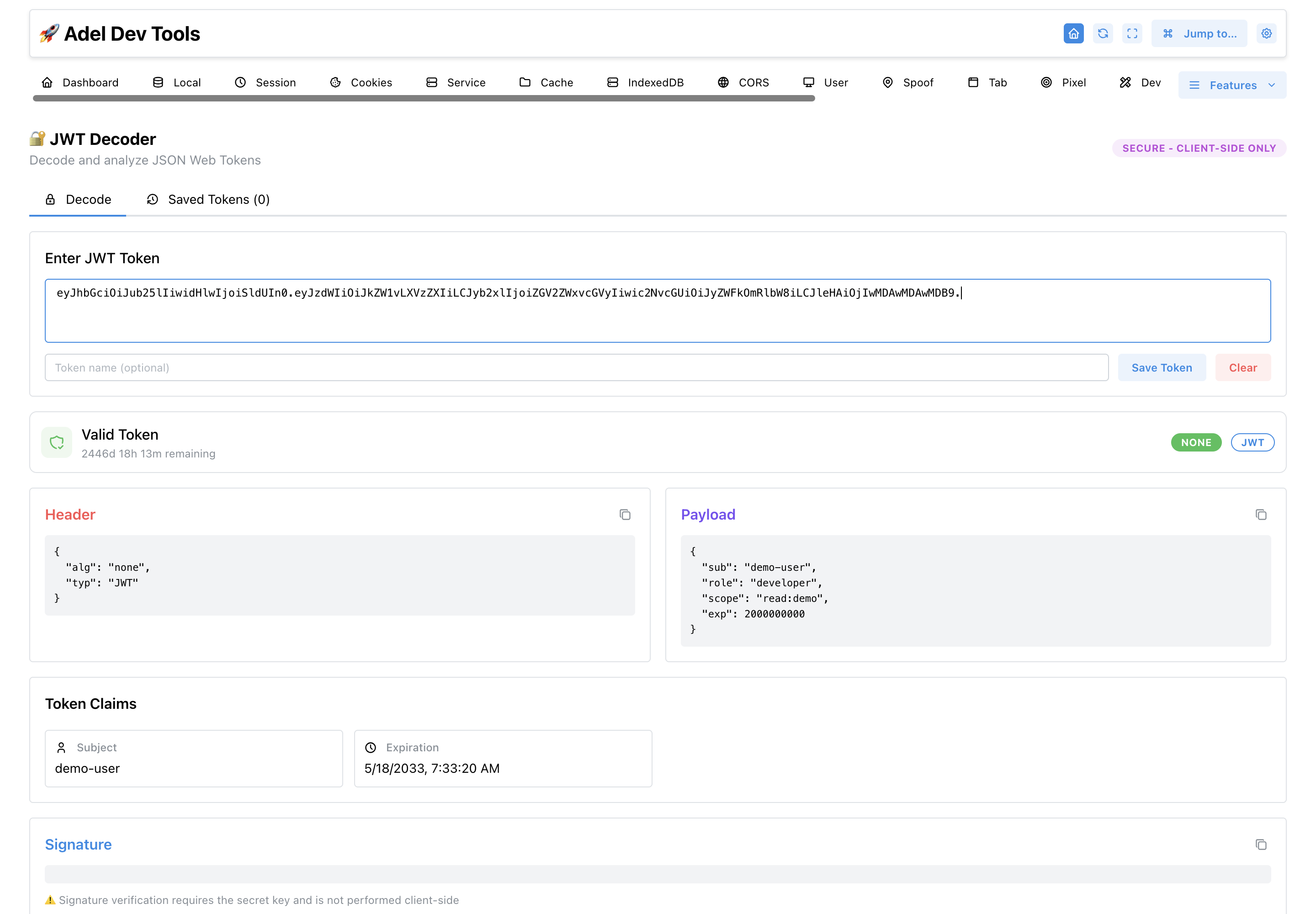
JWT Decoder
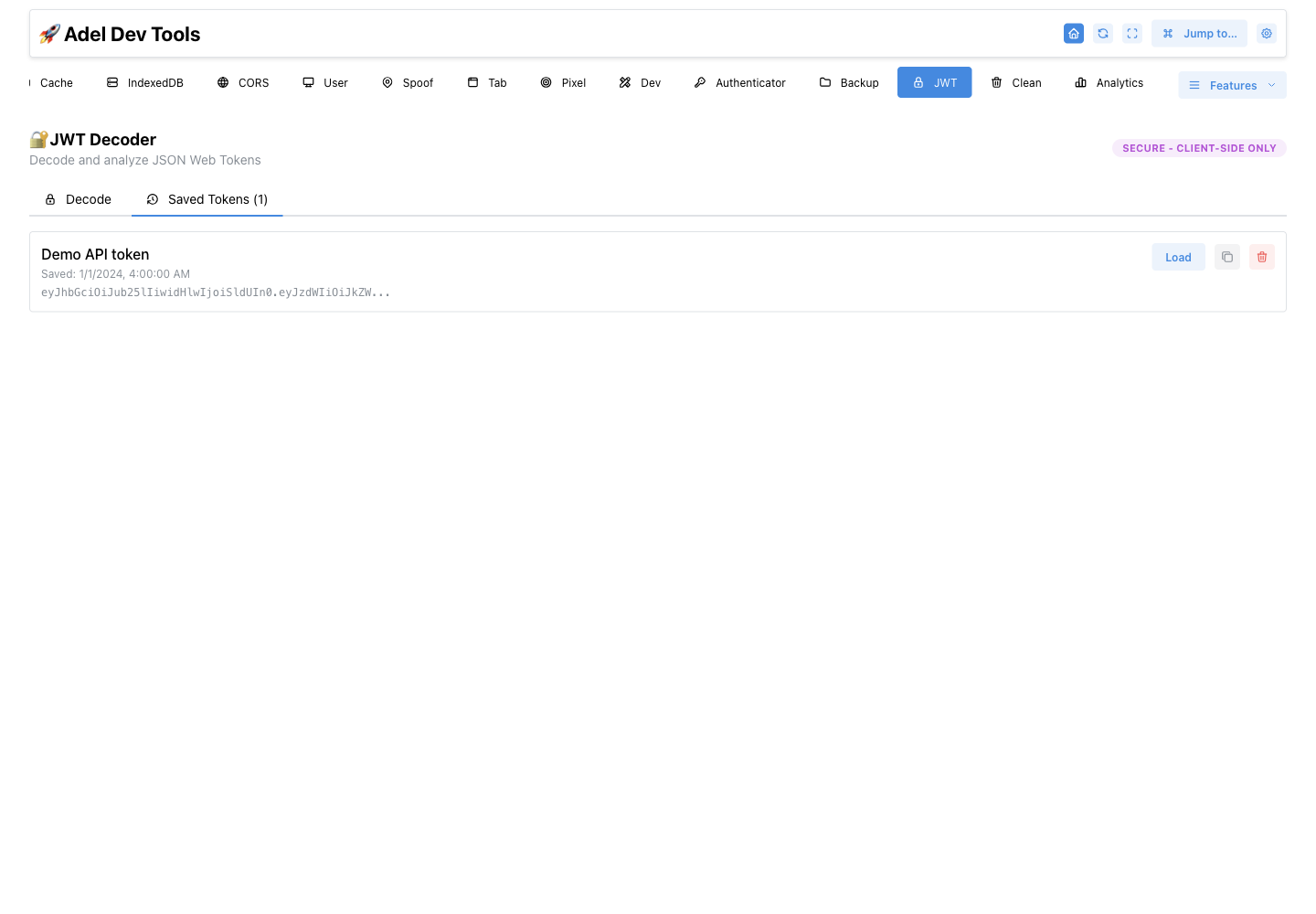
#Decodes JWT headers and payloads, shows common claims and expiry state, and copies individual values. Tokens can also be named and kept in the Saved tab.
- Header and payload decoding
- Expiry status
- Claim display
- Decode and Saved tabs
- Copyable values
How to use JWT Decoder
- Paste a JWT into Decode.
- Inspect its header, payload, claims, and expiry state.
- Save a labeled token when you need to compare or revisit it.
Decoding does not verify the token signature or prove that a token is trusted.
More screenshots (1)
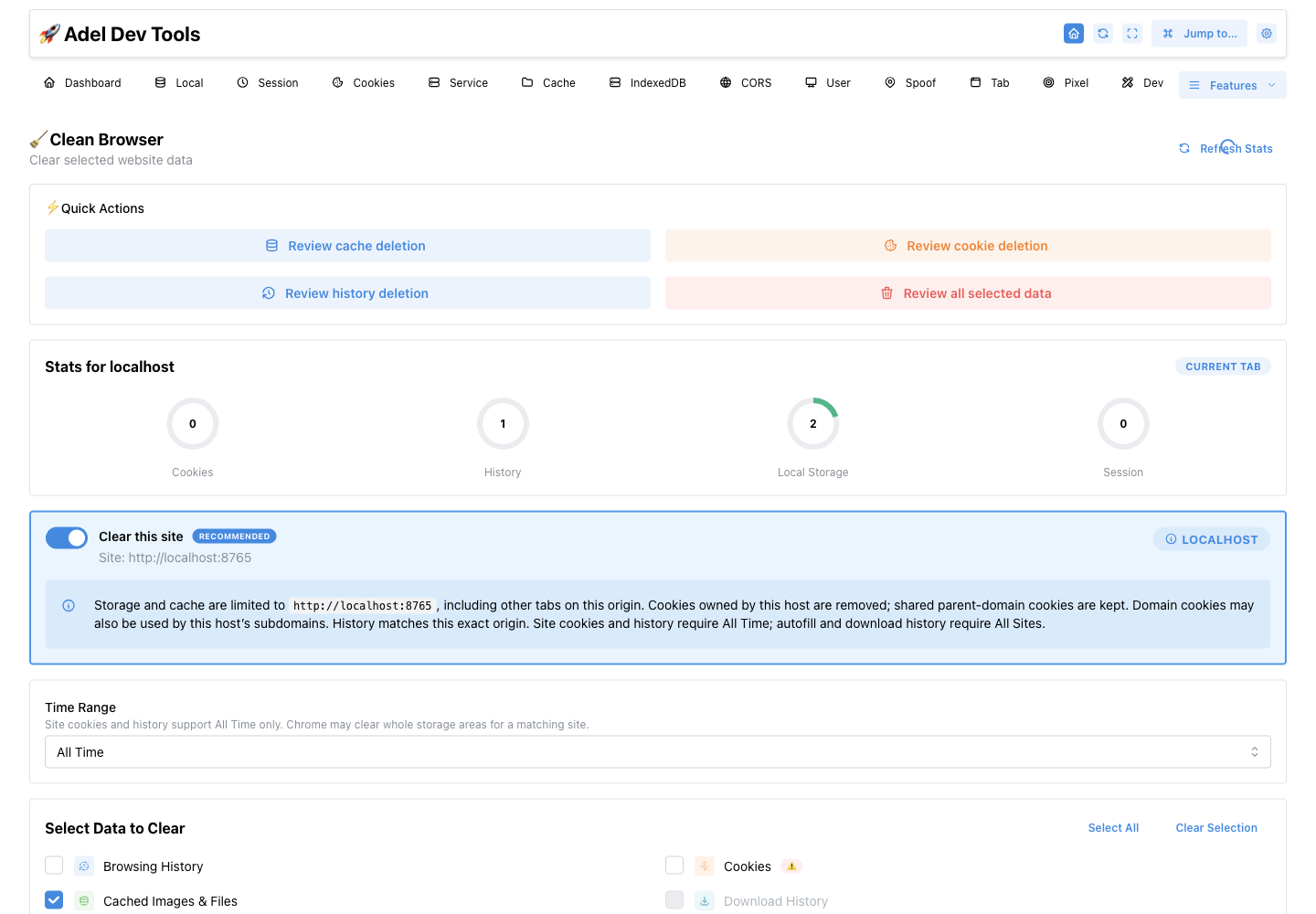
Clean Browser
#Clears selected browsing-data categories for the current site or all sites. Controls choose the scope, time range, data types, and required all-sites confirmation.
- Current-site targeting
- All-sites mode with typed confirmation
- Selectable data categories
- Time-range controls
How to use Clean Browser
- Choose current-site or all-sites scope.
- Select the time range and data categories.
- Review the target and confirm the clear action.
Chrome may clear an entire storage area for a matching site, and some categories require All Time or All Sites.
Storage Analytics
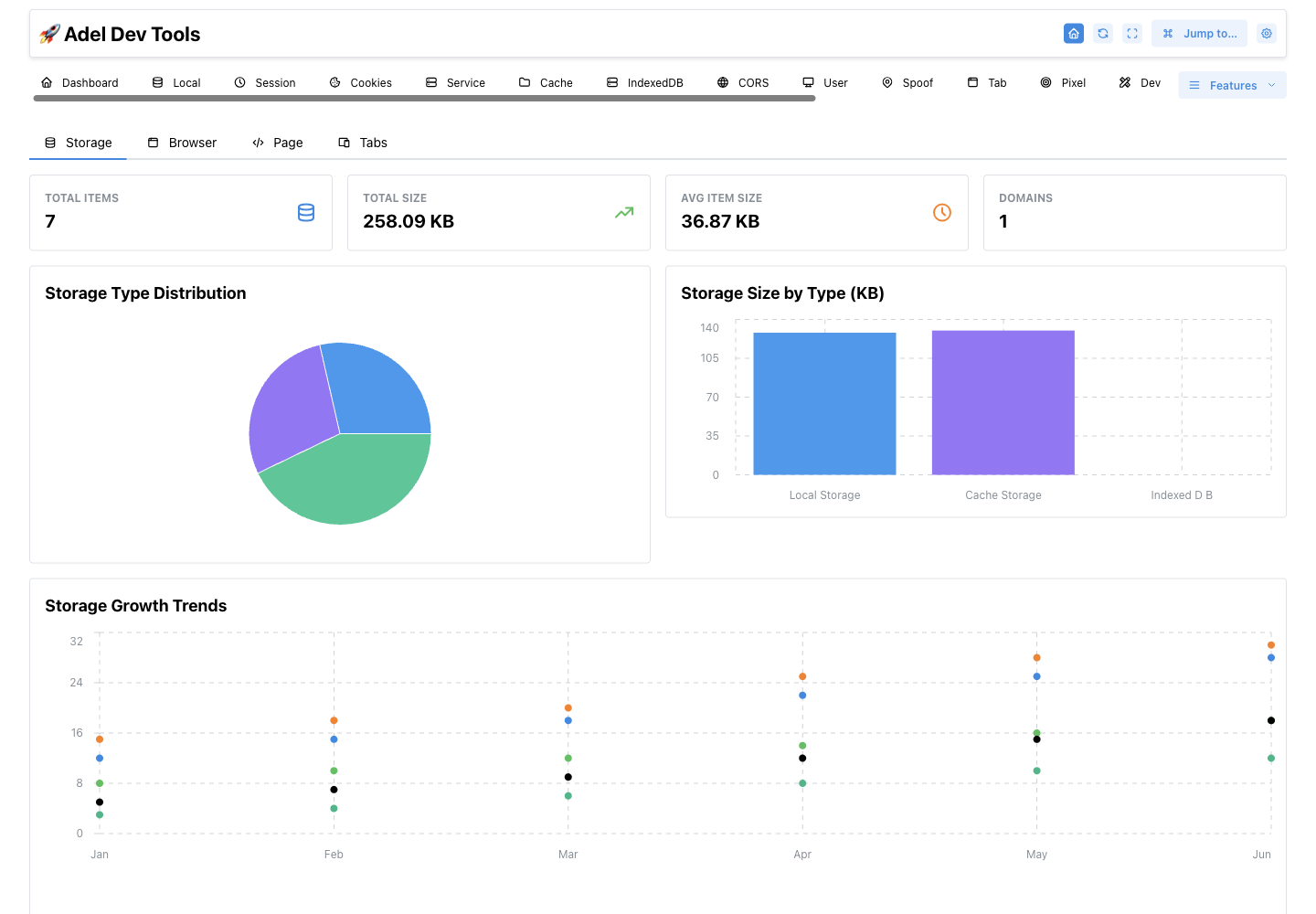
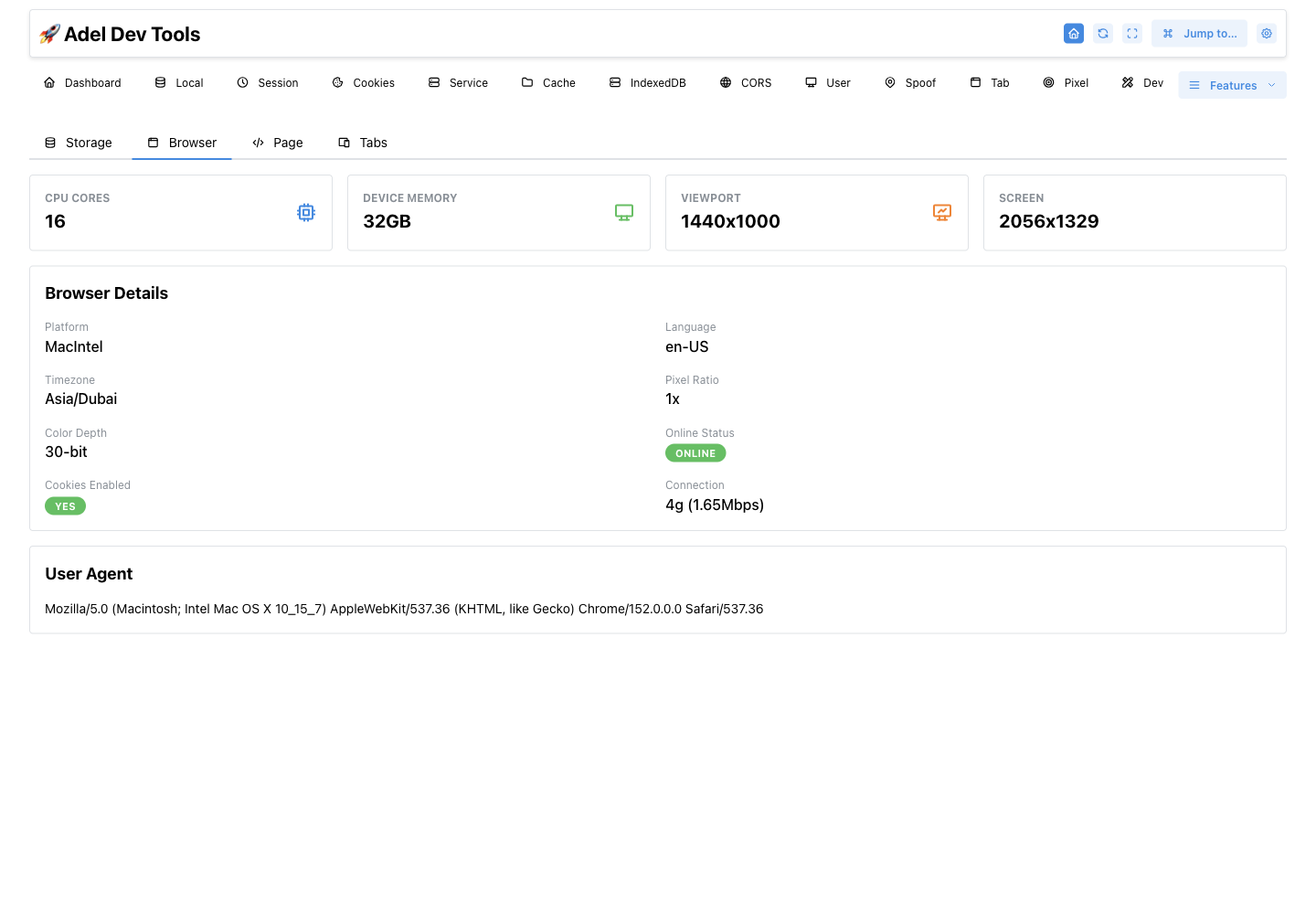
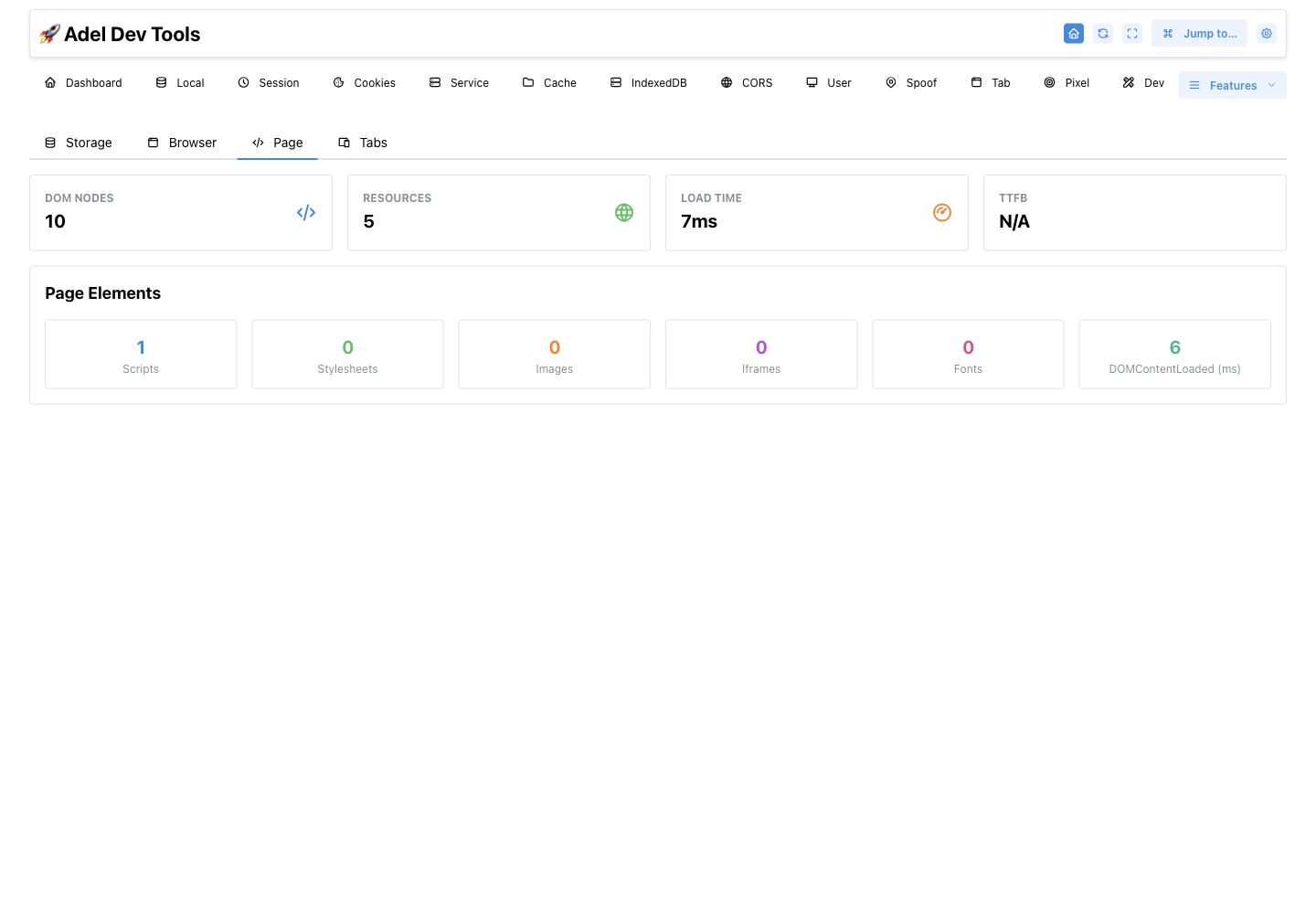
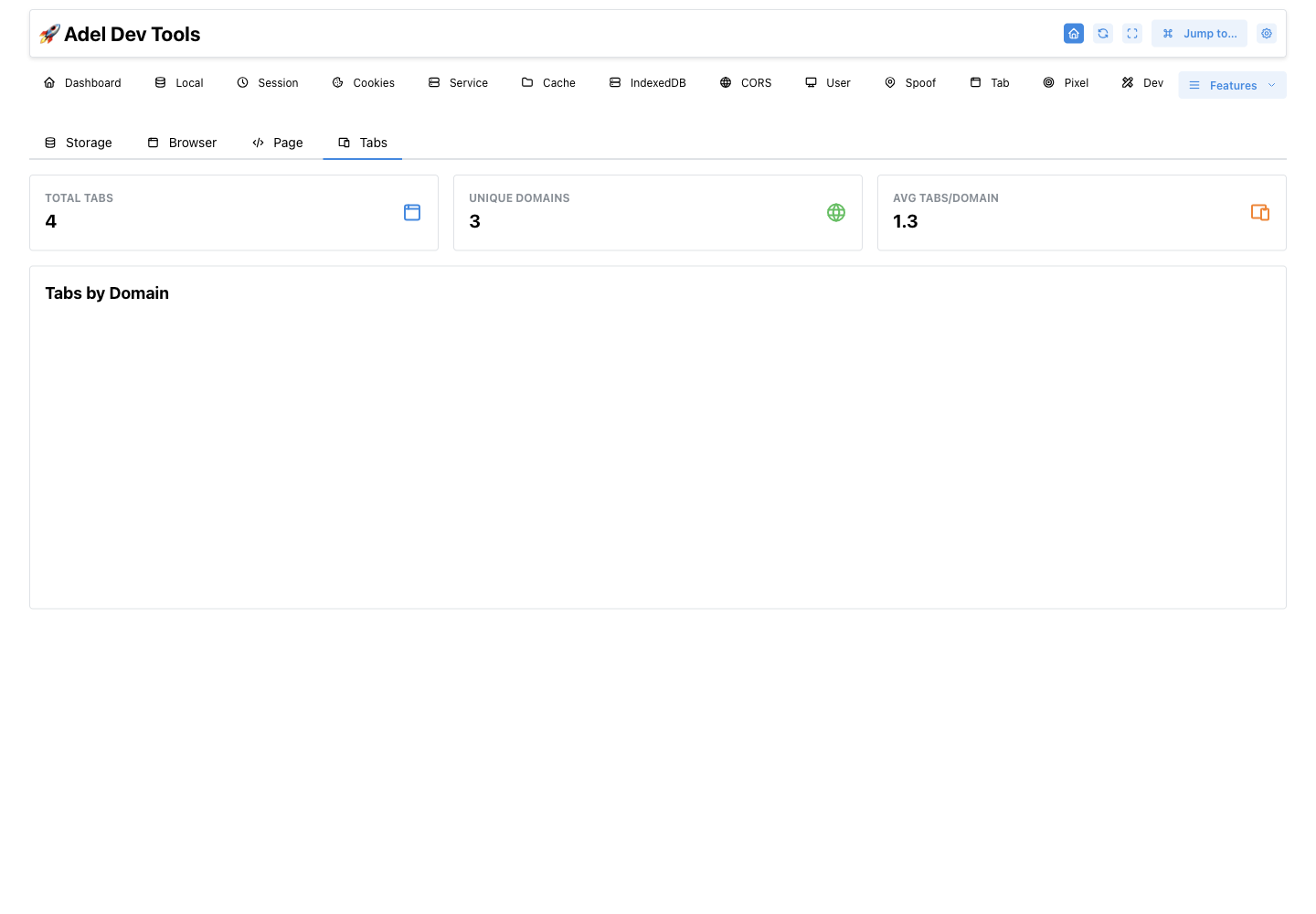
#Shows separate Storage, Browser, Page, and Tabs reports. These include storage size, browser and viewport facts, page timing and element counts, and tab counts by domain.
- Storage totals and distributions
- Browser hardware and viewport details
- Page timing and element counts
- Tab counts by domain
How to use Storage Analytics
- Choose Storage Analytics.
- Switch among Storage, Browser, Page, and Tabs.
- Review totals, distributions, and environment details.
Page metrics reflect the currently selected page and its current navigation state.
More screenshots (4)
Backup & Restore
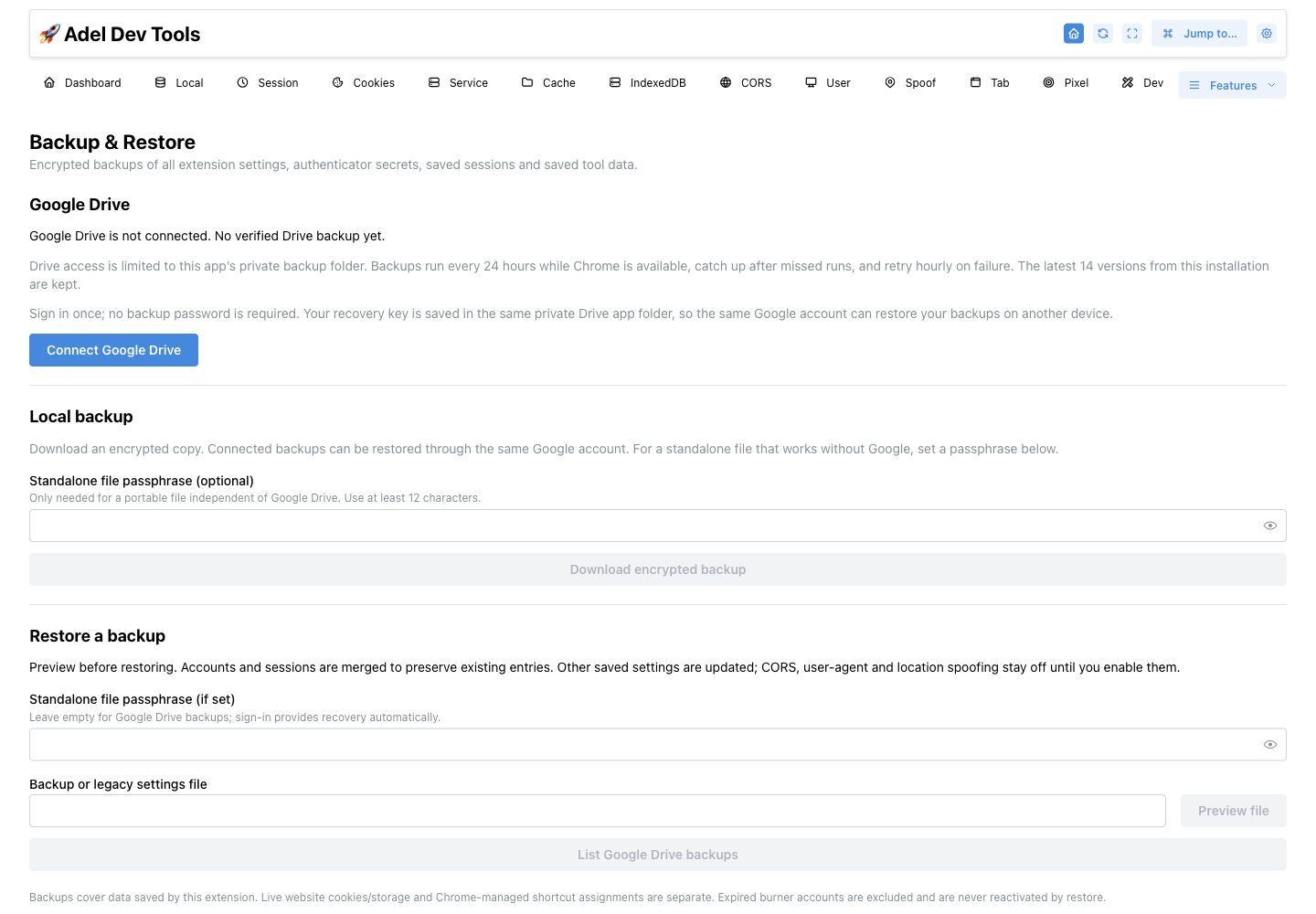
#Creates encrypted backups of extension settings, authenticator accounts, saved sessions, and saved tool data. Controls connect Google Drive, export a local file, preview a restore, restore a backup, or undo the last restore.
- Daily encrypted Google Drive backup
- Private app-data folder scope
- Latest 14 versions per installation
- Encrypted local export
- Restore preview and one-step rollback
How to use Backup & Restore
- Connect Google Drive for automatic backups or set a passphrase for a standalone file.
- Create and verify a backup.
- Preview a selected backup before restoring, and use Undo if the restore was unwanted.
Backups cover extension-owned data, not live website storage, cookies, or Chrome-managed shortcut assignments; the Drive recovery key shares the same Google-account trust boundary.
Extension Settings
#Turns five-second storage refresh on or off and controls which feature tabs appear in the navigation. It also shows the keyboard-shortcut controls.
- Five-second storage auto-refresh
- Navigation visibility controls by feature group
- Keyboard-shortcut overview and configuration link
How to use Extension Settings
- Open the gear button in the extension header.
- Turn five-second storage auto-refresh on or off.
- Choose which storage, network, developer, security, and analytics tabs remain visible.
Hiding a tab changes the navigation only; it does not remove the feature or its saved data.
Keyboard Shortcuts
#In the extension: Extension Settings → Keyboard Shortcuts
Lists Chrome command assignments for opening the extension or jumping to a section. The Configure button opens Chrome’s extension-shortcut page.
- Current Chrome command assignments
- Direct section shortcuts
- Link to Chrome’s extension-shortcut settings
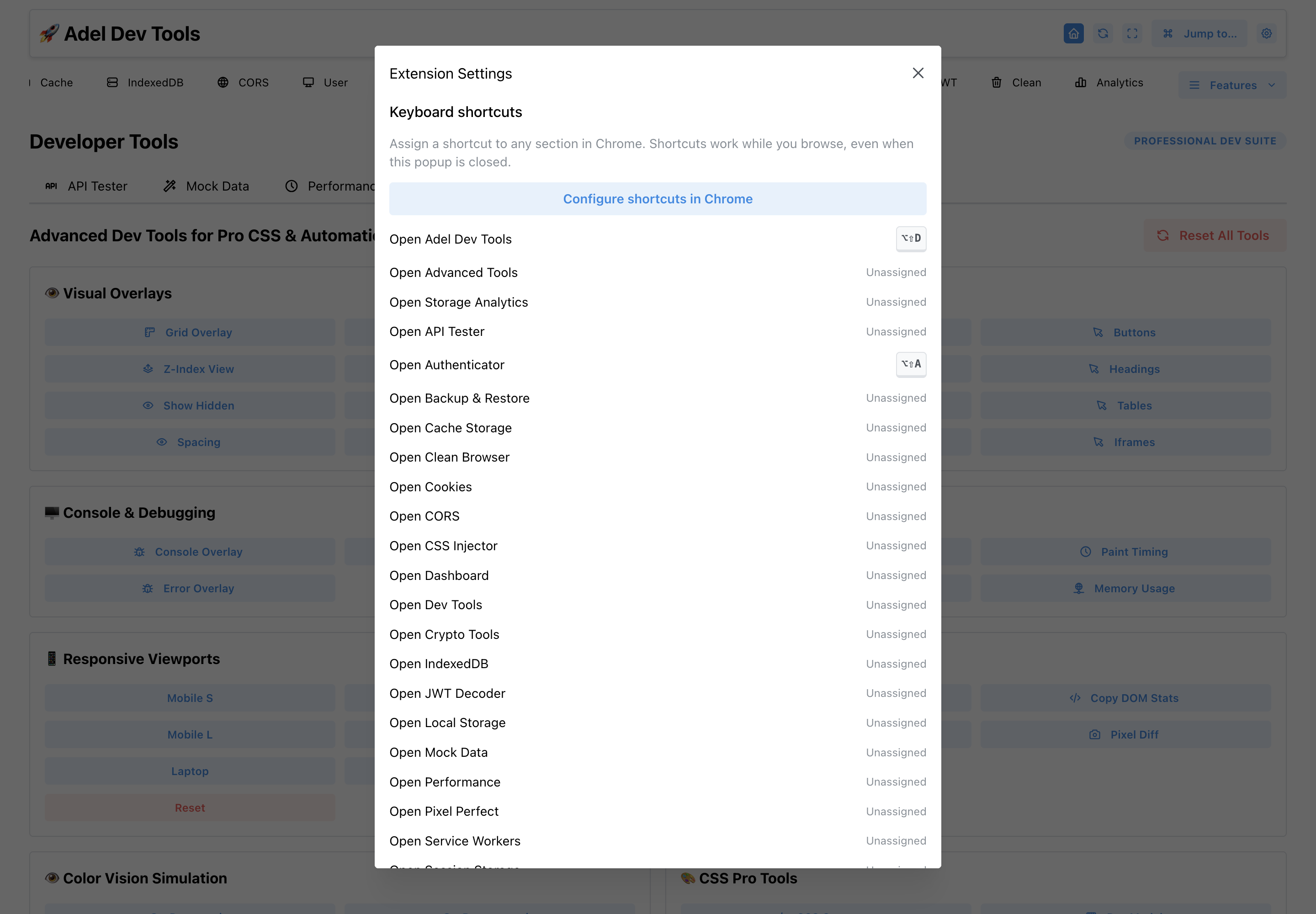
How to use Keyboard Shortcuts
- Open Extension Settings.
- Review assigned and unassigned commands.
- Choose Configure shortcuts in Chrome and assign the combinations you want.
Chrome owns the key assignments, so they are configured on chrome://extensions/shortcuts rather than inside the extension.
Install
Requires Chrome 127 or later on desktop.
Chrome Web Store review is in progress.
Download extension ZIP · v1.0.6- Download and unzip the file into a folder you will keep.
- Open
chrome://extensionsand enable Developer mode. - Choose Load unpacked and select the unzipped folder containing
manifest.json.
For manual updates, replace the files in the same folder and reload the existing extension. Keep an older personal build installed until you have exported and verified your data in the new installation.